Managing Your Complaint
This guide covers how to review, track, and manage your submitted formal complaint.
Review the Submitted Complaint
- From the Dashboard, open My Dockets to view your submission.
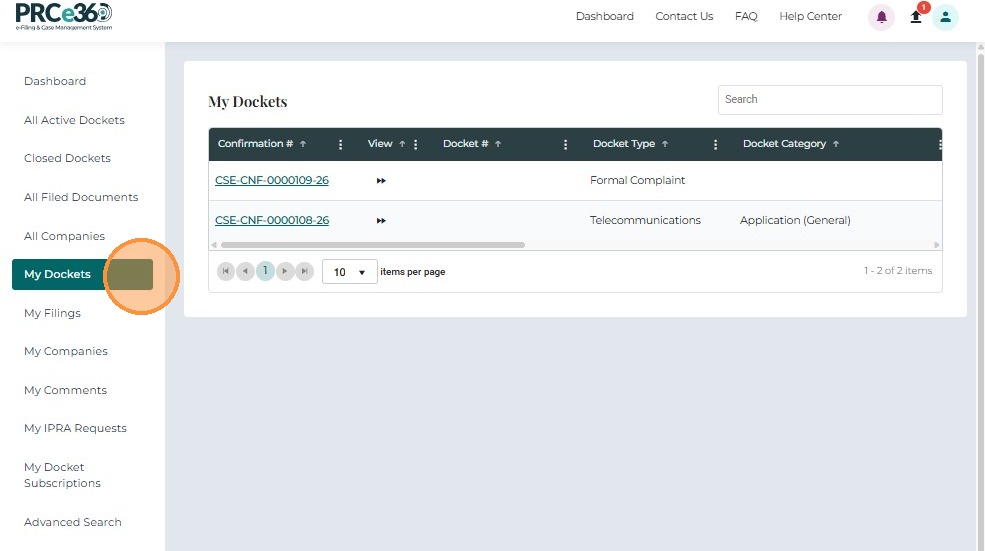
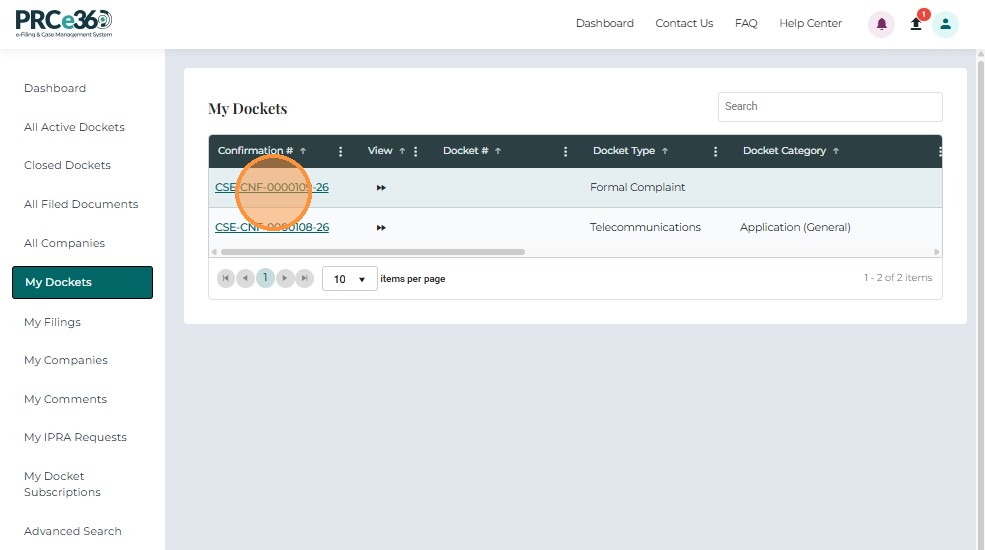
- The complaint record displays with status New.
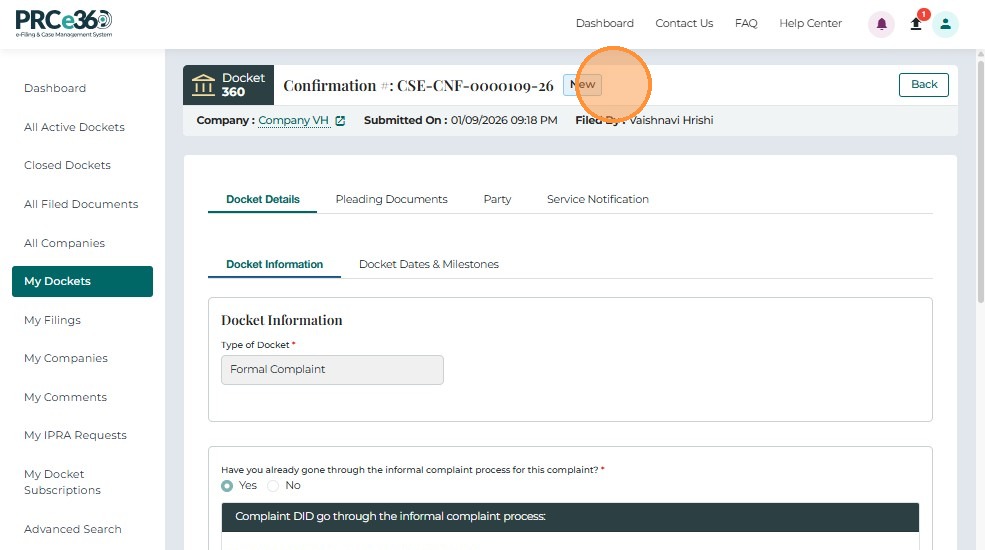
- Click the Confirmation Number to open the complaint in Case 360 View.
-
Within Case 360, several tabs display detailed information:
- Docket Details – Shows the complaint information entered during submission.
- Pleading Documents – Lists all uploaded documents that are public.
- Party – Displays complainant, respondent, and filer details.
- Service Notification – Lists all users notified about this Docket.
- Comments – Shows all comments and updates related to the Docket.
To return to the Dashboard at any time, click Cancel in the top-right corner.
What Happens After Submission
Immediate Steps
- Confirmation: You'll receive a confirmation number immediately after submission
- Email Notification: A confirmation email is sent to your registered email address
- Dashboard Update: Your complaint appears in My Dockets with status New
Review Process
Timeline: Typically 2-5 business days for initial review
-
PRC Staff Review:
- Your complaint is routed to the appropriate PRC division
- Staff reviews for completeness and compliance
- May request additional information if needed
-
Status Updates:
- New → Complaint received, awaiting review
- Active → Complaint accepted and docket created
- Rejected → Complaint denied (you'll receive reason)
-
Email Notifications:
- You'll receive email updates when status changes
- Check your spam folder if you don't see emails
If Your Complaint is Accepted
Once accepted:
- Status changes to Active
- A formal docket number is assigned
- Your complaint appears in All Active Dockets
- The docket becomes part of the public record
- You can file additional documents into the docket
Next Steps:
- Monitor your dashboard for updates
- Check My Dockets for status changes
- You may receive requests for additional information
- Follow the docket through the regulatory process
- Use File into Formal Complaint to add additional documents
If Your Complaint is Rejected
If rejected:
- You'll receive an email with the rejection reason
- Status shows as Rejected in your dashboard
- Review the reason and correct any issues
- You can submit a new complaint with corrected information
Common Rejection Reasons:
- Missing required information
- Insufficient supporting documentation
- Information doesn't meet regulatory requirements
- Complaint doesn't fall under NMPRC jurisdiction
Tracking Your Complaint
Ways to track:
- My Dockets - View status and details
- Email Notifications - Receive updates automatically
- Case 360 View - See all docket information
- All Active Dockets - Once accepted, view in public queue
Adding Additional Documents
After your complaint is accepted, you can add more documents:
- Go to My Dockets
- Find your complaint
- Use File into Formal Complaint to add additional documents
- New documents will appear in the Pleading Documents tab
Need Help?
- Status Questions: Check your dashboard or contact Get Help
- Rejection Issues: Review rejection notice and Troubleshooting Guide
- Process Questions: Contact filing support via Get Help
Related Guides
- Submit a Formal Complaint - Overview - Introduction to formal complaints
- My Dockets - View and manage your complaints
- File into Formal Complaint - Add documents to an existing complaint
- Troubleshooting - Solve common issues