Complete the Complaint Form
Answer the questions on the Submit New Formal Complaint form: your informal complaint history, who is filing, the company involved and the details of the dispute. All fields marked with * are required.
- Open the form. See Open the Complaint Form.
- The company or utility the complaint is about must already be registered in the system. See Register a New Company.
Docket Type
-
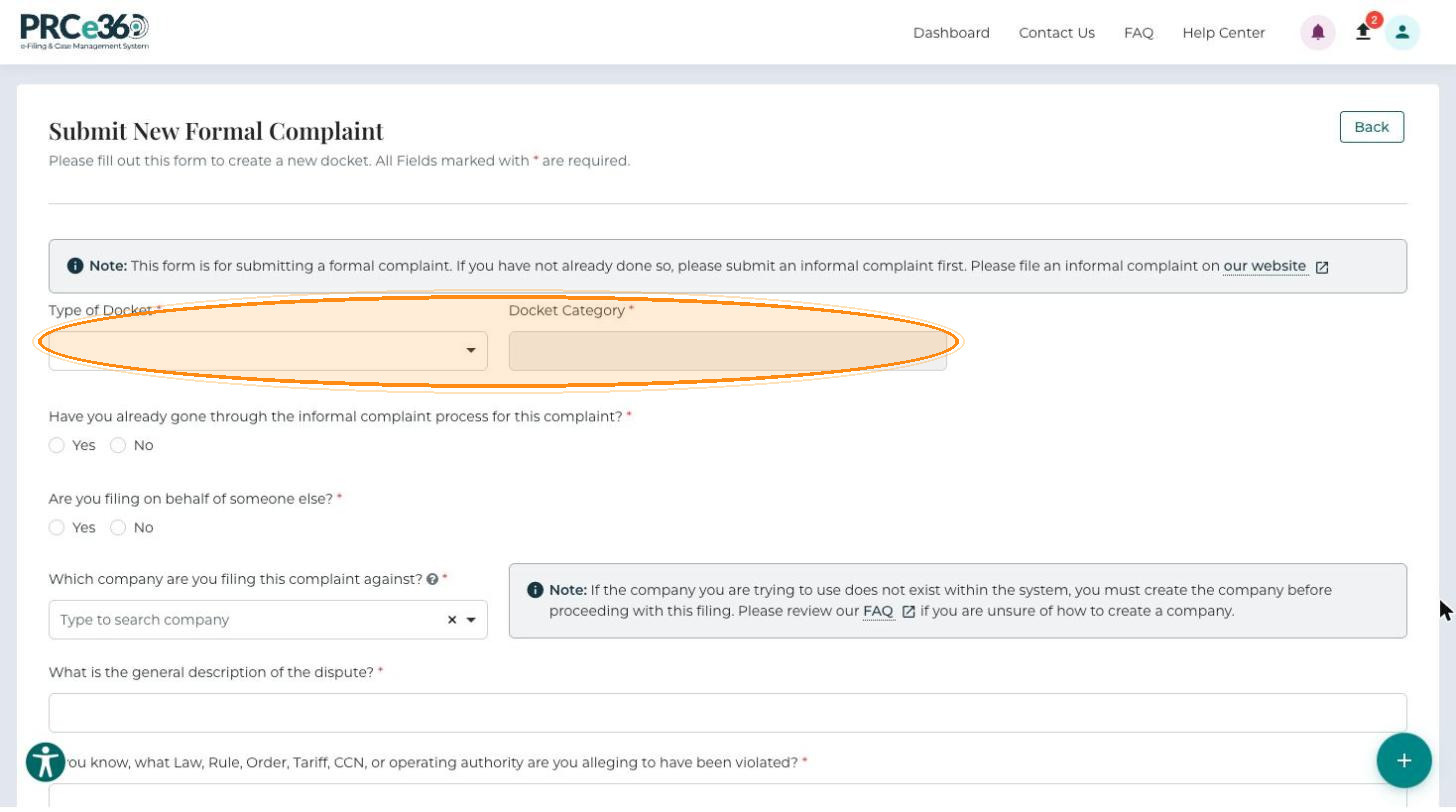
Select the Type of Docket: Company Compliance Filings, Pipeline, Telecommunications or Utility.
-
The Docket Category is filled in as Formal Complaint and cannot be changed.
Informal Complaint History
-
Answer Have you already gone through the informal complaint process for this complaint?
-
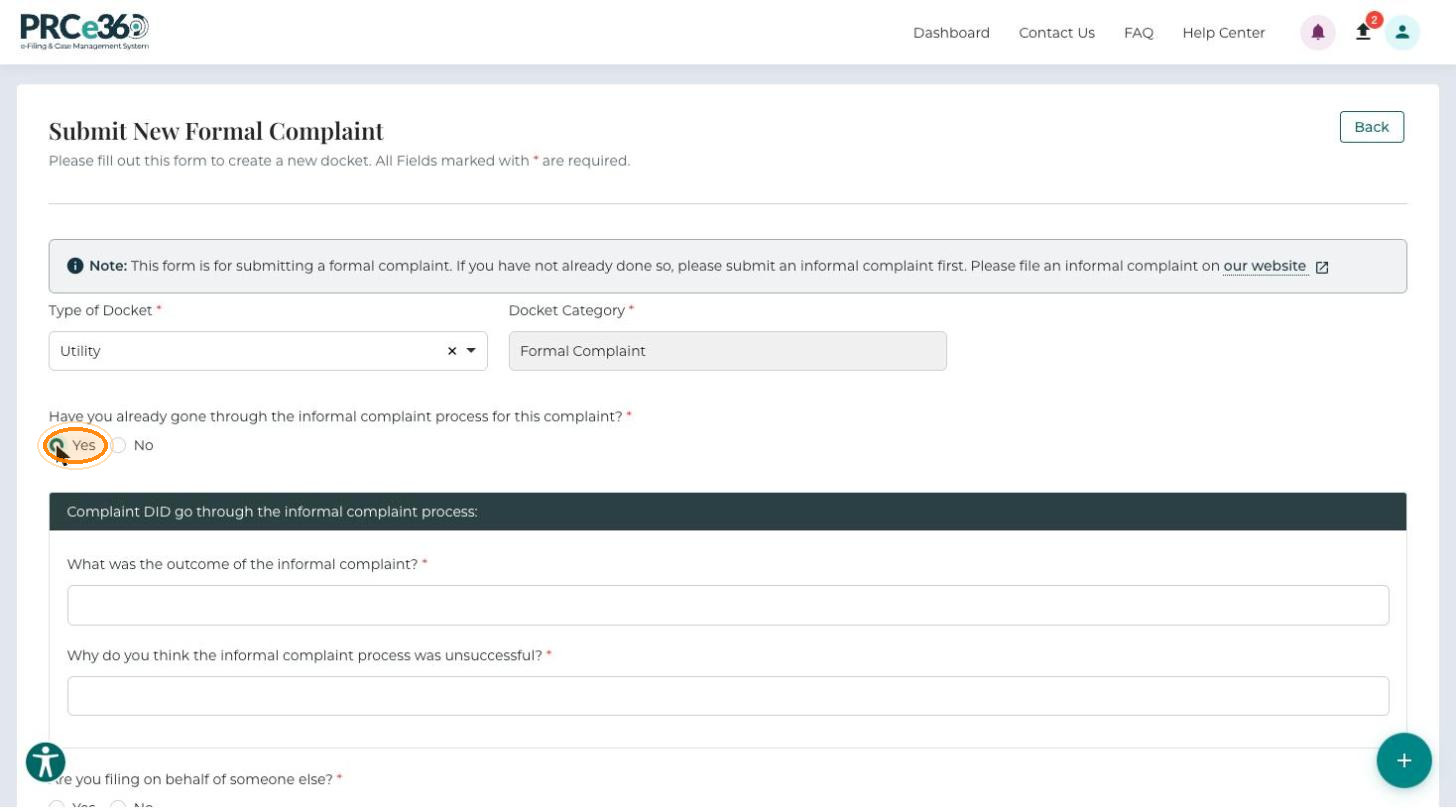
Yes – the Complaint DID go through the informal complaint process section opens. Enter What was the outcome of the informal complaint? and Why do you think the informal complaint process was unsuccessful?
-
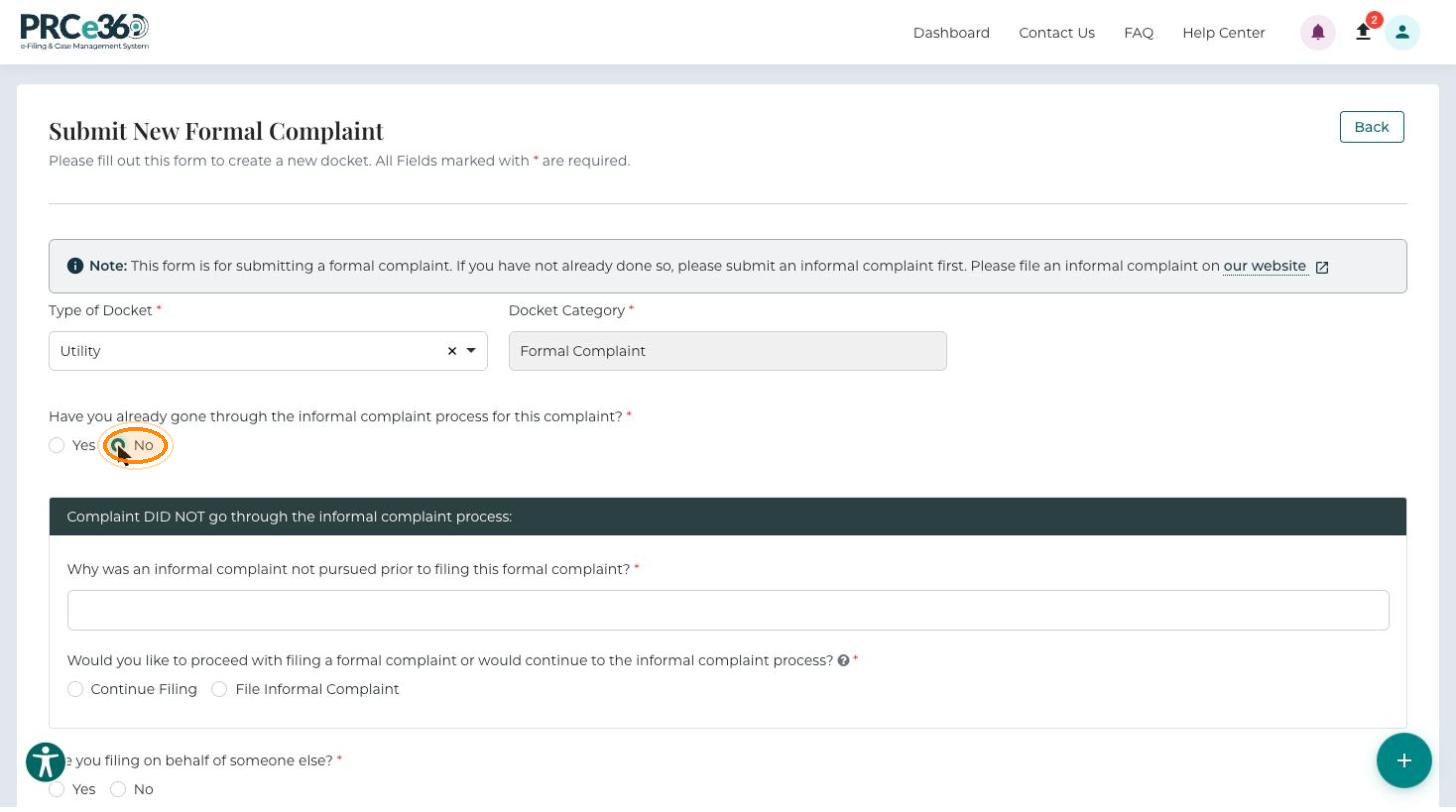
No – the Complaint DID NOT go through the informal complaint process section opens. Enter Why was an informal complaint not pursued prior to filing this formal complaint?
-
-
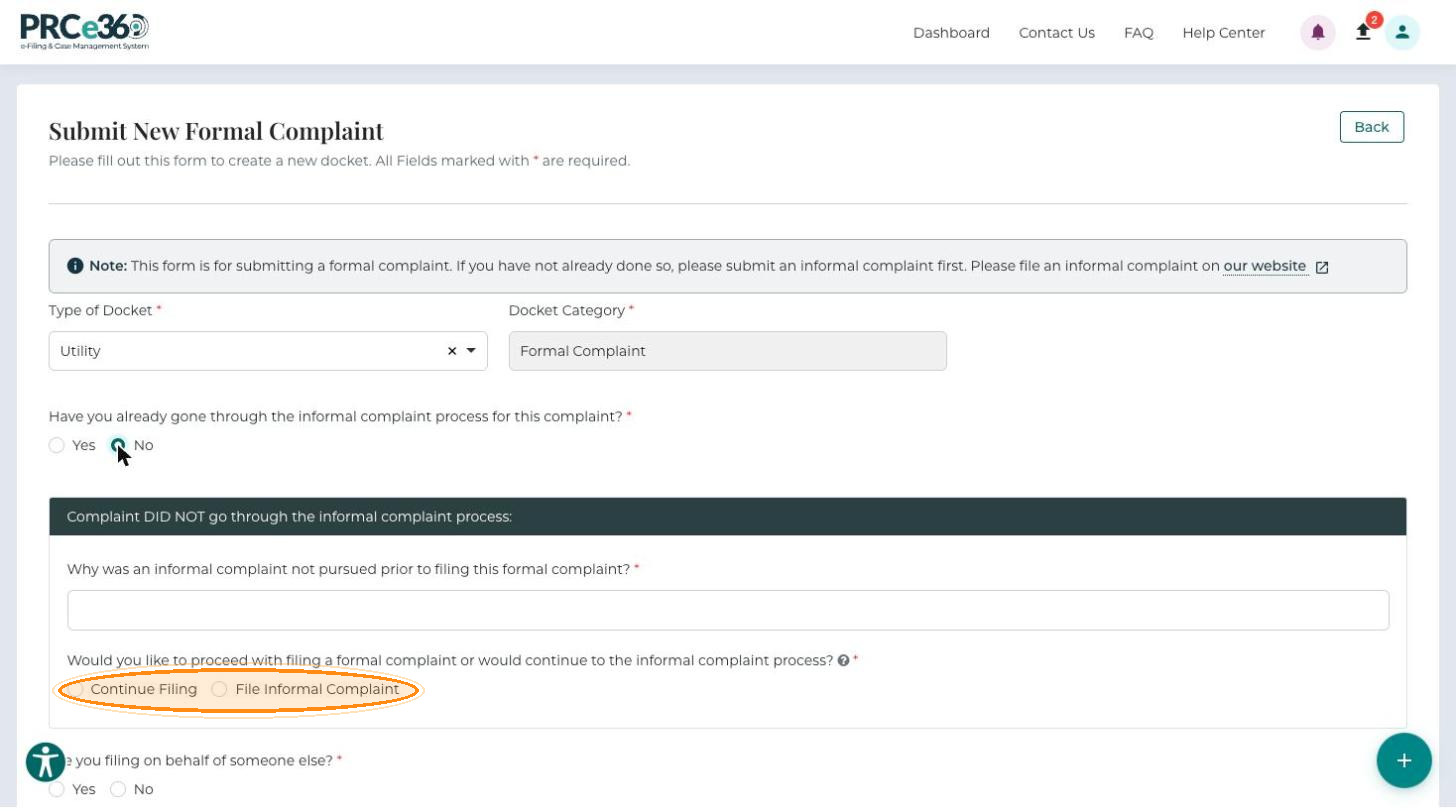
If you answered No, answer Would you like to proceed with filing a formal complaint or would continue to the informal complaint process?: Continue Filing to stay on this form, or File Informal Complaint to start with an informal complaint.
-
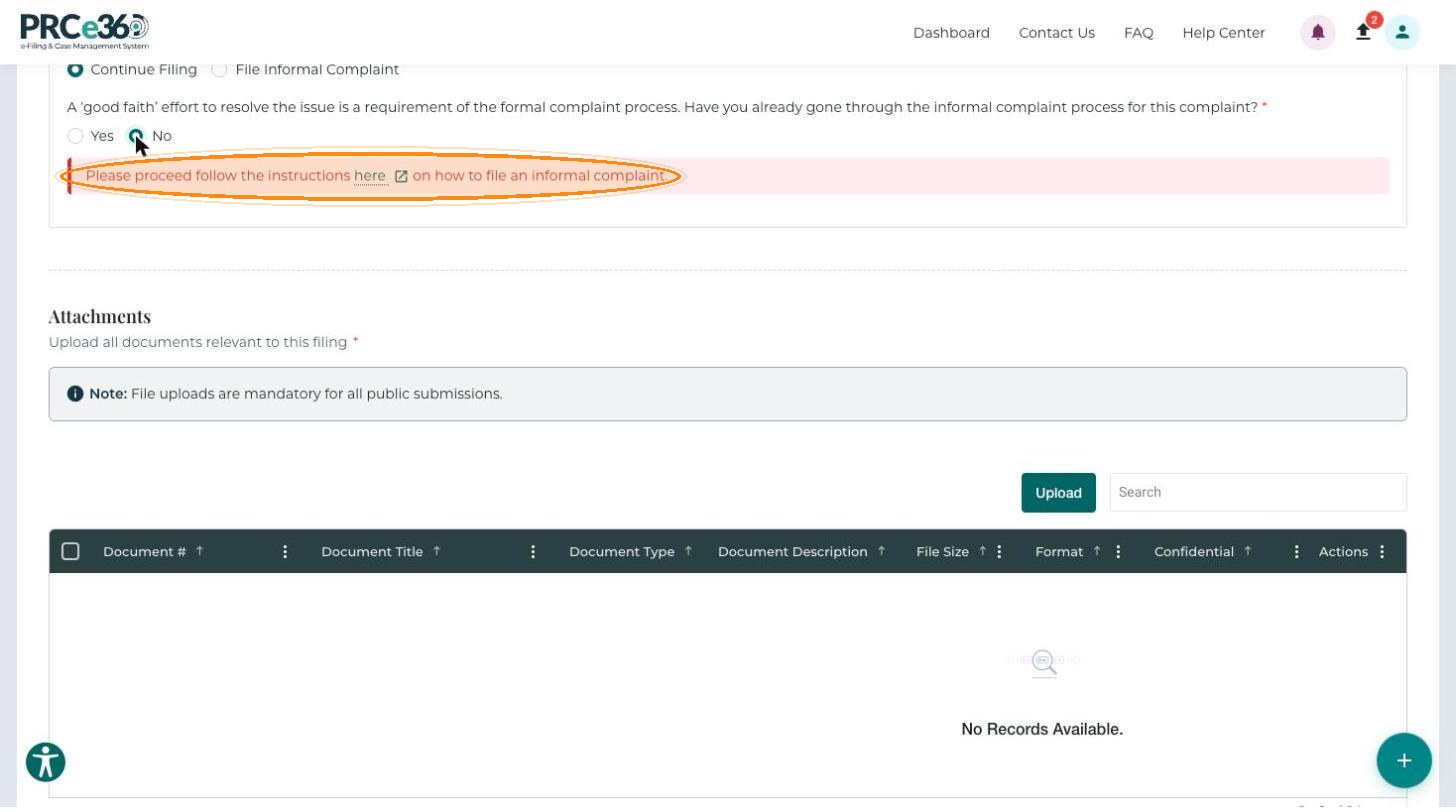
If you selected Continue Filing, the form explains that a "good faith" effort to resolve the issue is a requirement of the formal complaint process and asks again whether you have gone through the informal complaint process.
- Yes – the rest of the form appears.
- No – the form asks you to follow the linked instructions on how to file an informal complaint, and the rest of the complaint questions are not shown.
Filer Details
-
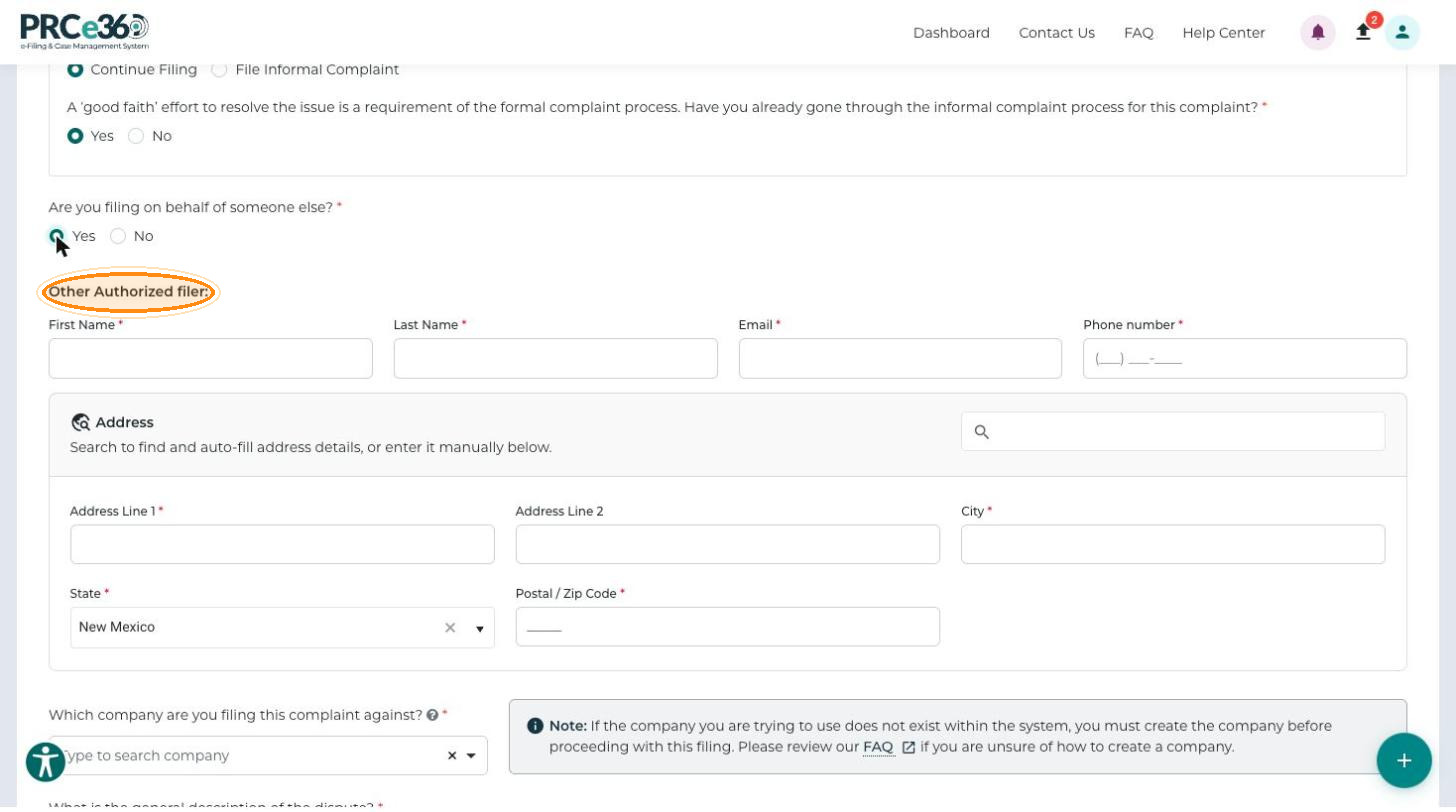
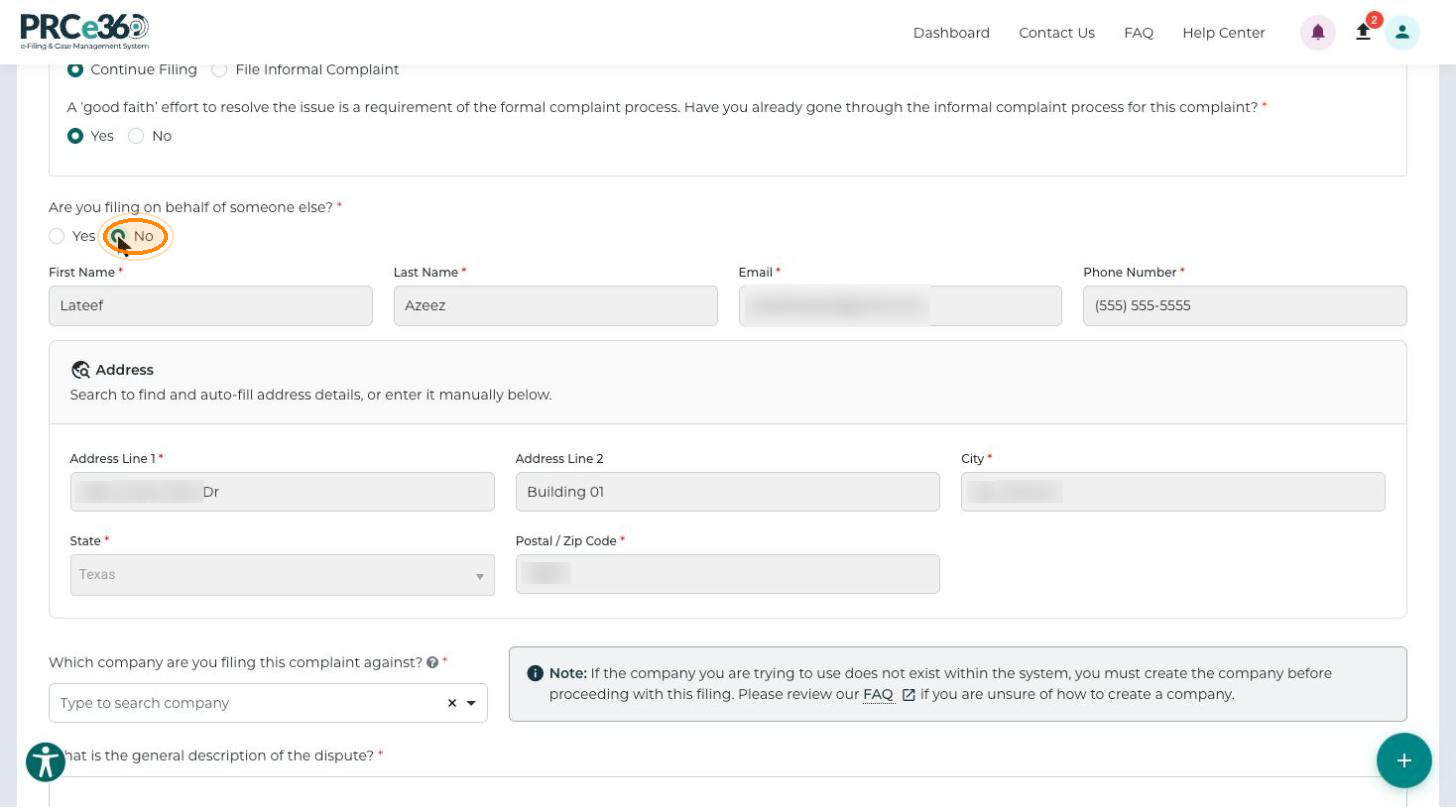
Answer Are you filing on behalf of someone else?
-
Yes – enter the Other Authorized filer details: First Name, Last Name, Email, Phone number and the Address (Address Line 1, Address Line 2, City, State, Postal / Zip Code). Use the search box in the Address panel to find and auto-fill the address, or enter it manually. Address Line 2 is optional.
-
No – your registered name, email, phone number and address fill in from your profile and cannot be changed here.
-
-
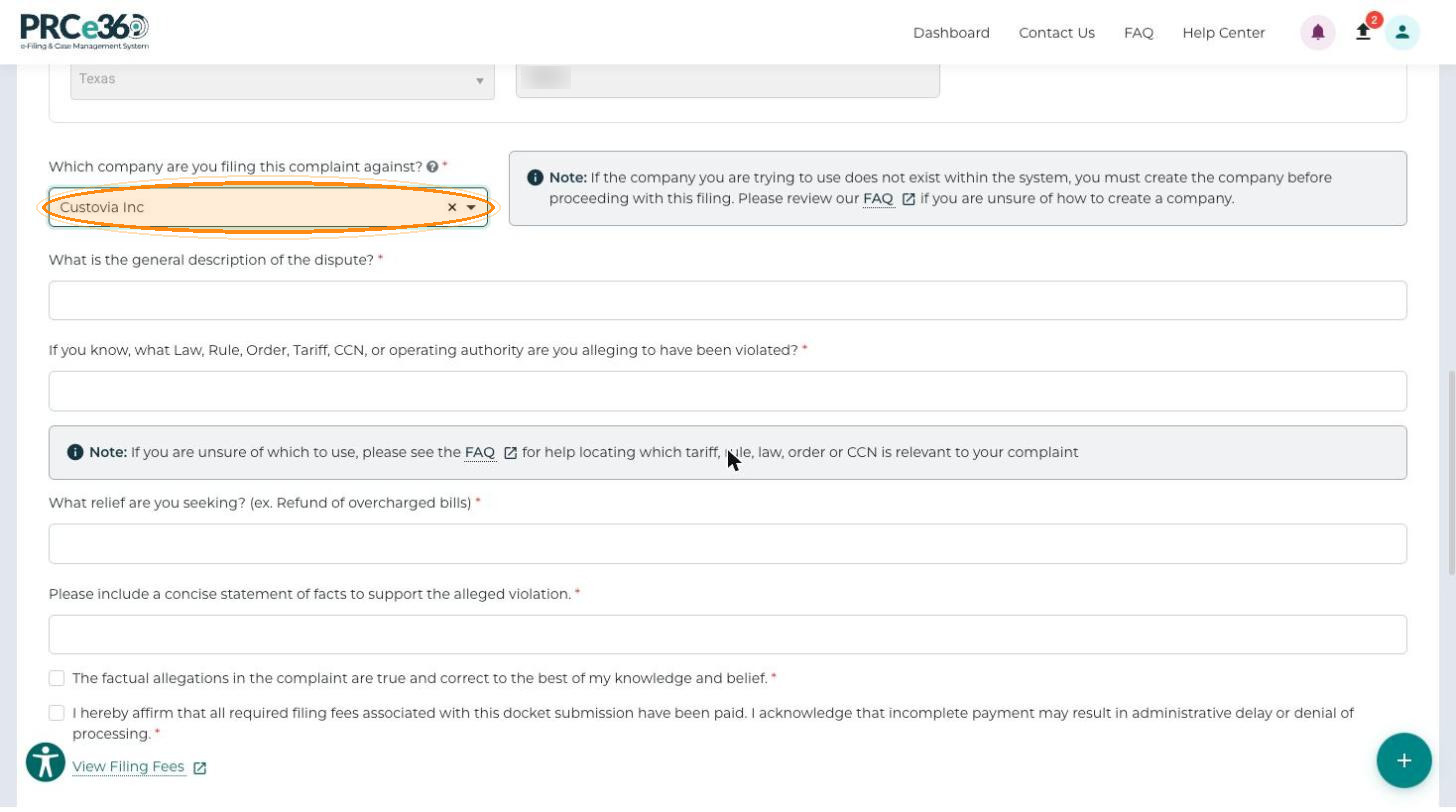
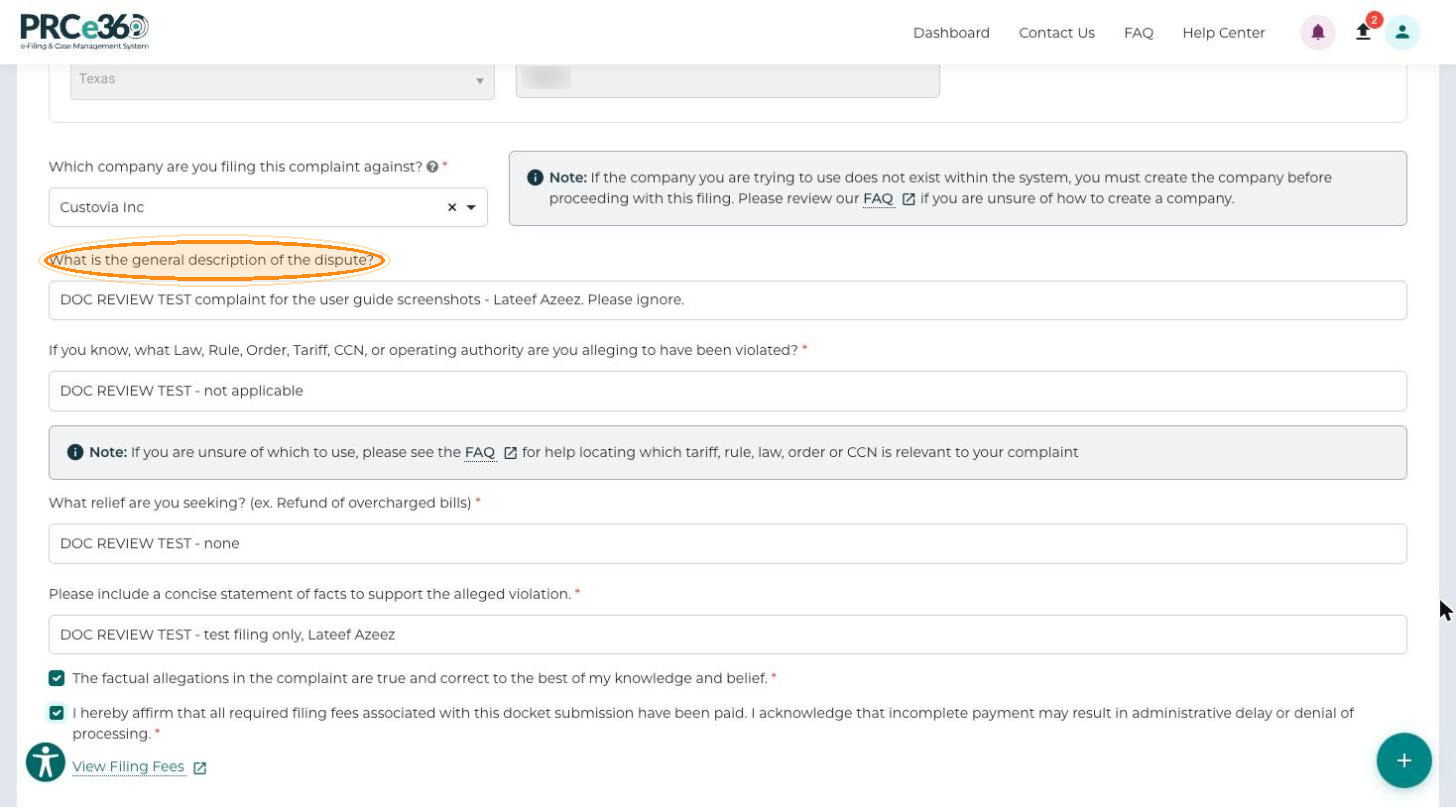
In Which company are you filing this complaint against?, type the company name and select it from the list. If the company does not appear, it must be registered before you can file. The note next to the field links to the FAQ on how to create a company, and Register a New Company explains the steps.
Complaint Details
-
Enter What is the general description of the dispute?
-
Enter If you know, what Law, Rule, Order, Tariff, CCN, or operating authority are you alleging to have been violated? If you are unsure which one applies, the note below the field links to the FAQ.
-
Enter What relief are you seeking? (ex. Refund of overcharged bills)
-
Enter Please include a concise statement of facts to support the alleged violation.
-
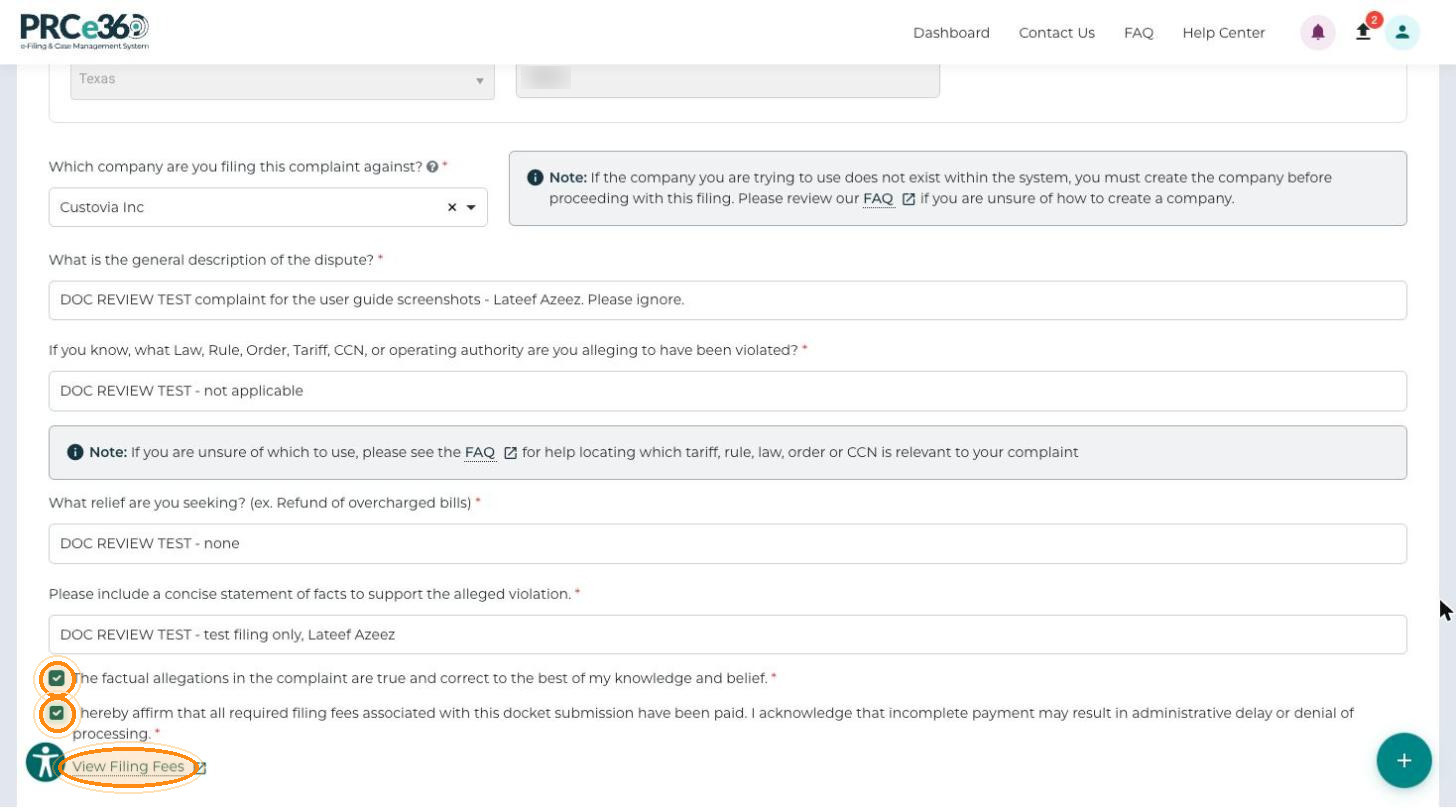
Select The factual allegations in the complaint are true and correct to the best of my knowledge and belief.
-
Select I hereby affirm that all required filing fees associated with this docket submission have been paid. I acknowledge that incomplete payment may result in administrative delay or denial of processing. Click View Filing Fees to see the fees.
Next, attach your documents in the Attachments section. See Upload Complaint Documents.
Required Fields and Formats
Fields marked with * are required, including:
- The informal complaint question and the follow-up questions for your answer.
- The filer's name, email, phone number and address (Address Line 2 is optional).
- The company or utility, selected from the list. If it is not listed, register it first.
- All four complaint detail questions: description, law or rule violated, relief sought and statement of facts. Be specific: include dates, locations and how the issue affects you.
- Both certification checkboxes.
- At least one attachment.
| Field | Format |
|---|---|
| A valid email address, for example name@example.com. Use one you check regularly. | |
| Phone | (XXX) XXX-XXXX. |
| Address | A complete address including city, state and ZIP code. |
Common Mistakes
- Leaving required fields blank, or skipping sections because they look optional.
- Selecting the wrong company or utility. Search the list first; do not proceed if the company is not found. Register it first instead (company registration is available to Tier 2 users).
- A vague description such as "I have a problem". Include dates, locations and details.
- Missing, unreadable or corrupted supporting documents, or files over the size limit.
- Incorrect contact details. Keep your contact information up to date if it changes.
- Leaving a certification unchecked, or certifying information you know is incorrect. Read what you are certifying before you select it.