Request Company Access
Use Request Company Management Access to ask for management rights to a company profile, so you can manage the company's records, submissions and regulatory compliance documentation. You can request access to a newly registered company or to an existing company that is already active in the PRC database.
Tier 2 users who are signed in to the portal.
You need an authorization letter from an authorized person at the company. Every request must include it.
Open the Form
-
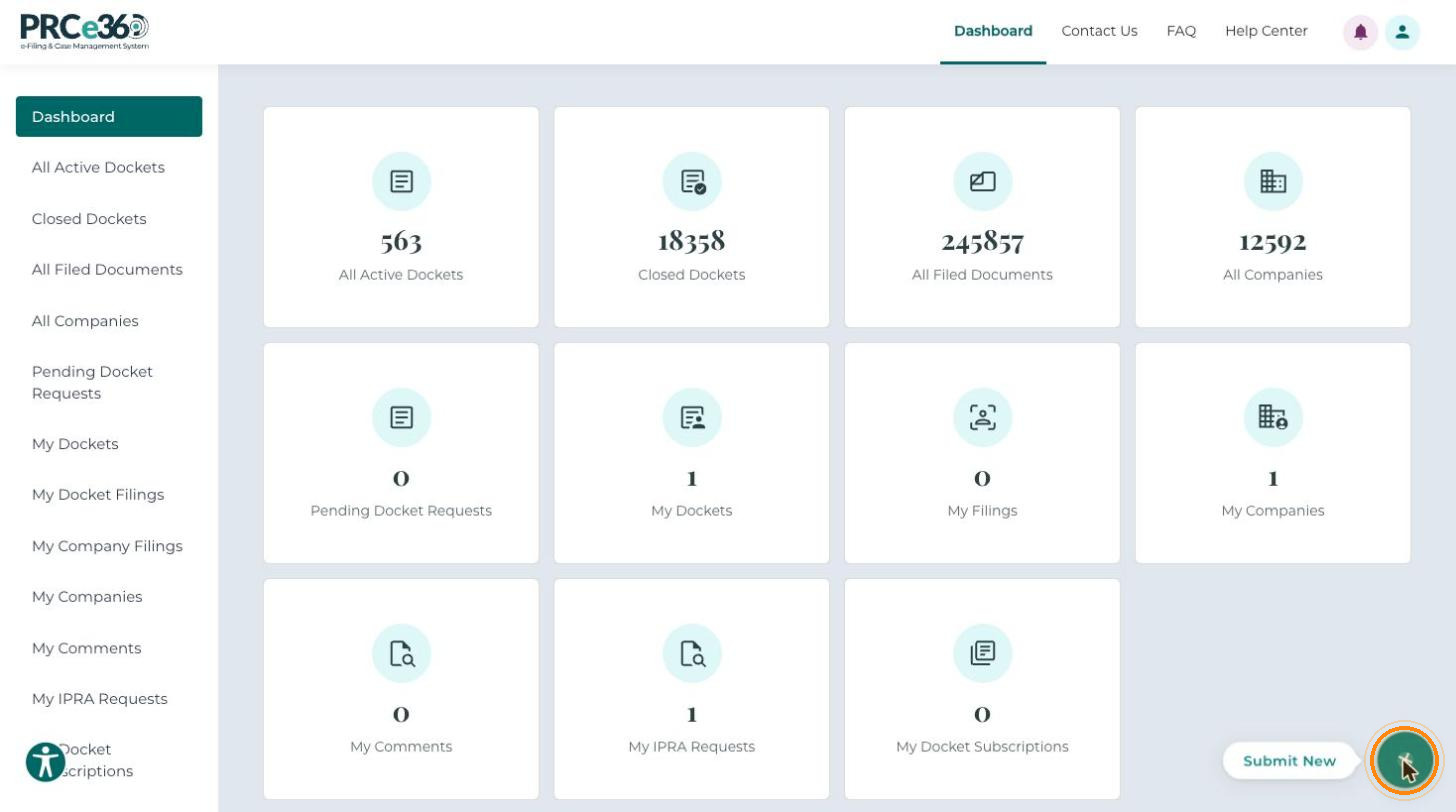
On your Dashboard, click Submit New at the bottom right of the screen.
-
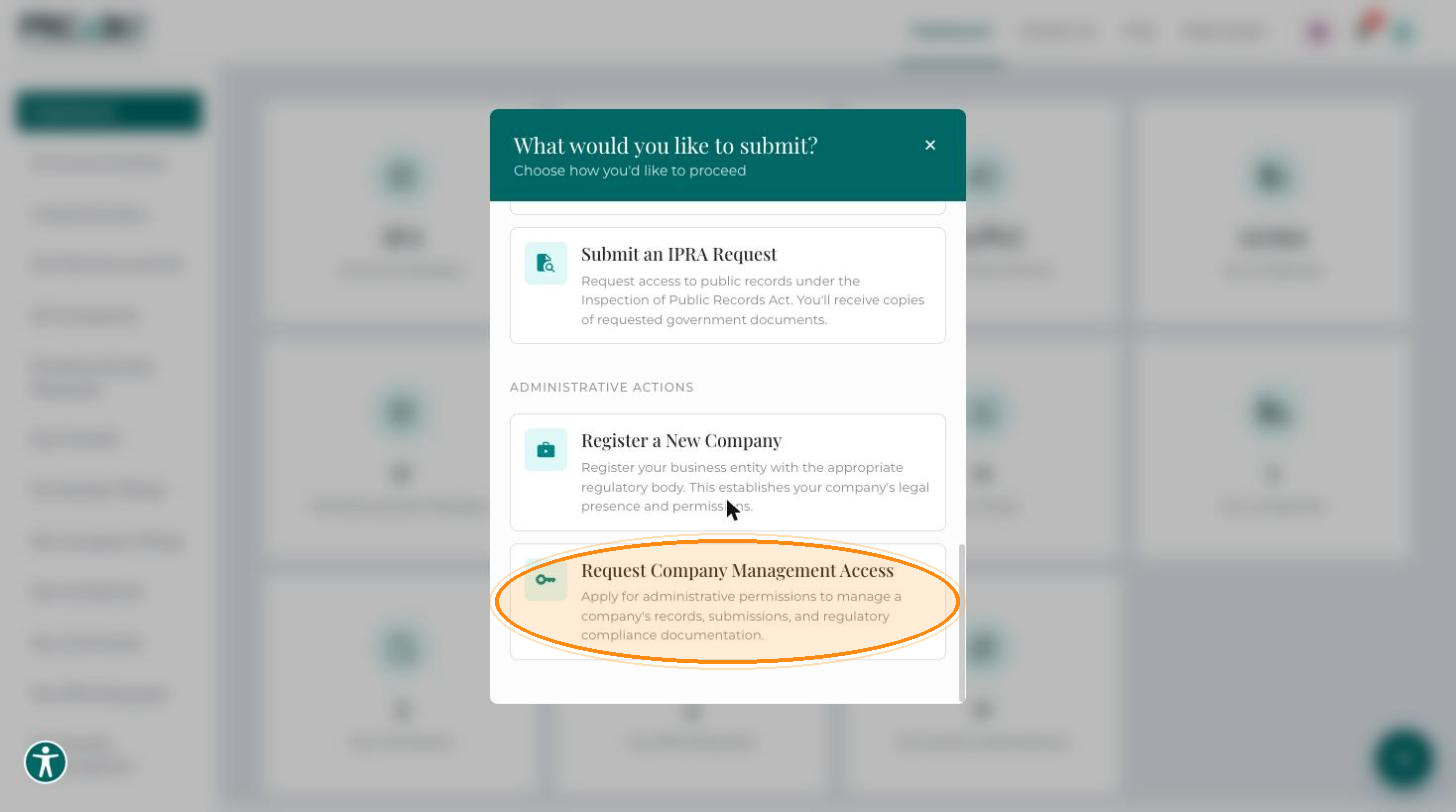
In the What would you like to submit? pop-up, under Administrative Actions, select Request Company Management Access.
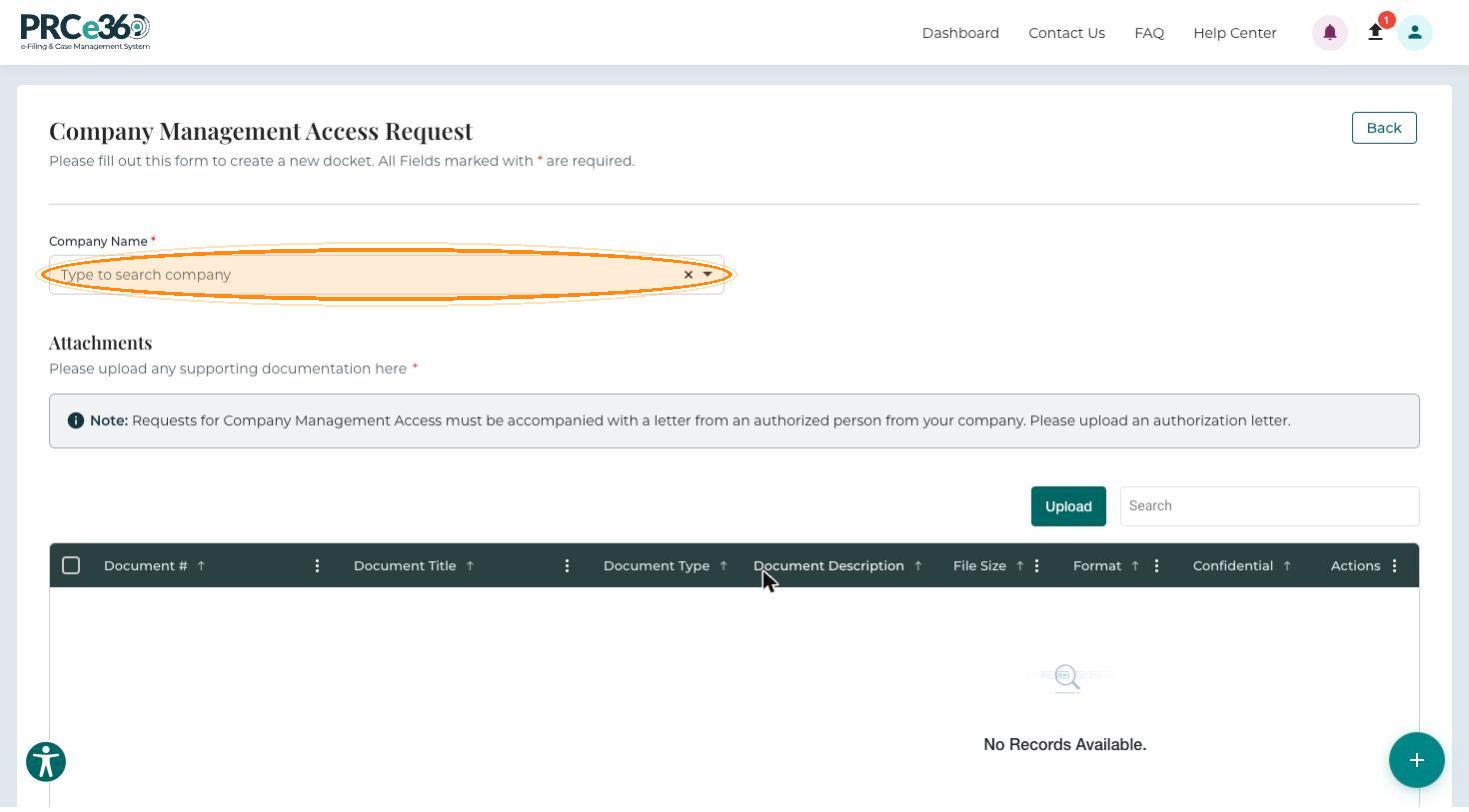
The Company Management Access Request form opens. Here you choose the company and upload the authorization documents. All fields marked with * are required.
Choose the Company
In Company Name*, type part of the company name and select the company from the list. Only companies already registered in the portal are listed; if the company is not there, register it first.
Upload the Authorization Documents
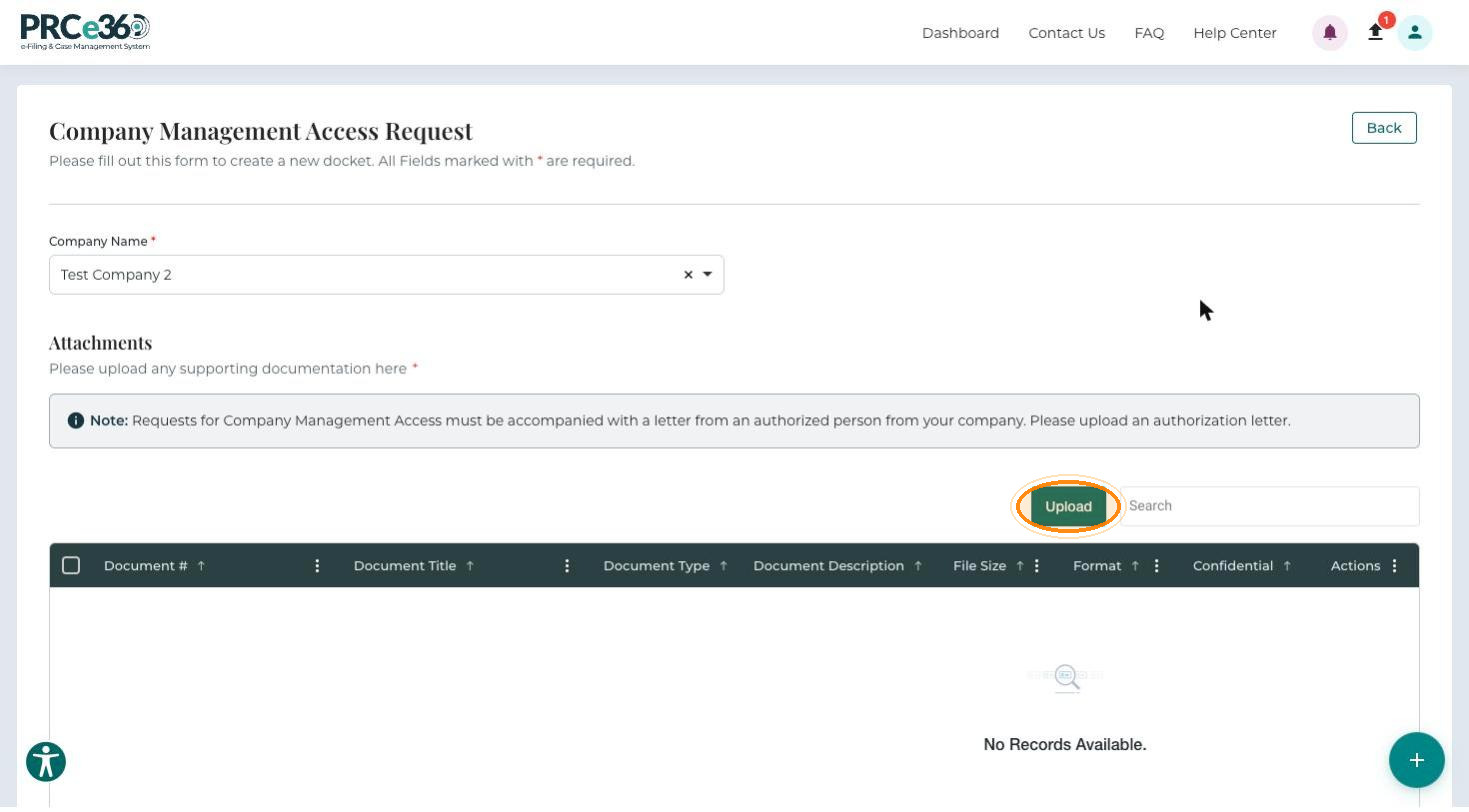
Requests for company management access must include a letter from an authorized person at your company. Upload it, and any other documents that confirm your right to manage the company, under Attachments. At least one document is required.
-
Click Upload.
-
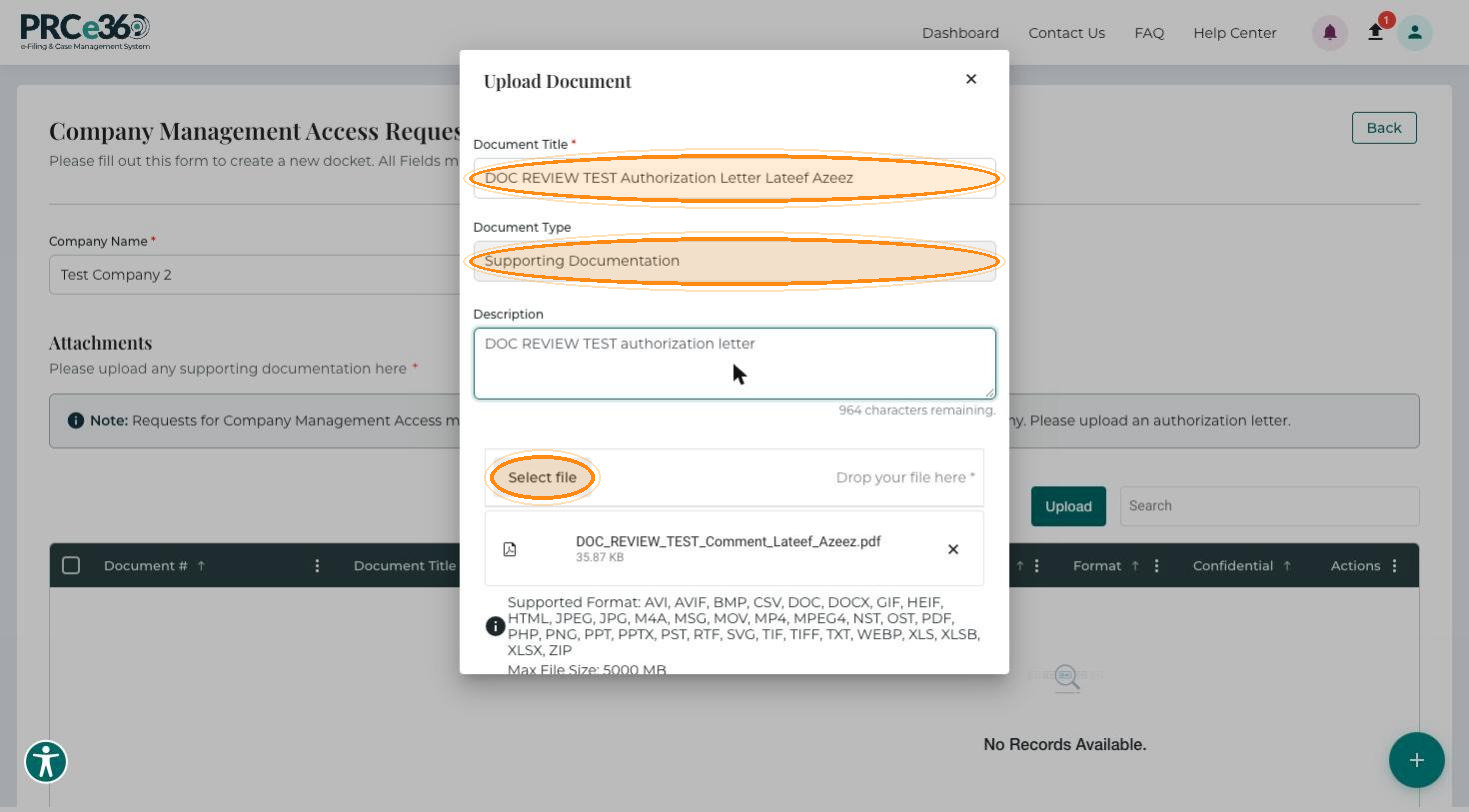
In the Upload Document pop-up, enter the Document Title*. The Document Type is filled in as Supporting Documentation.
-
Optionally enter a Description (up to 1,000 characters).
-
Click Select file or drop the file into the box. The supported formats are listed below the box, and the maximum file size is 5000 MB.
-
Click Save to add the document to the grid, or Cancel to close the pop-up without saving.
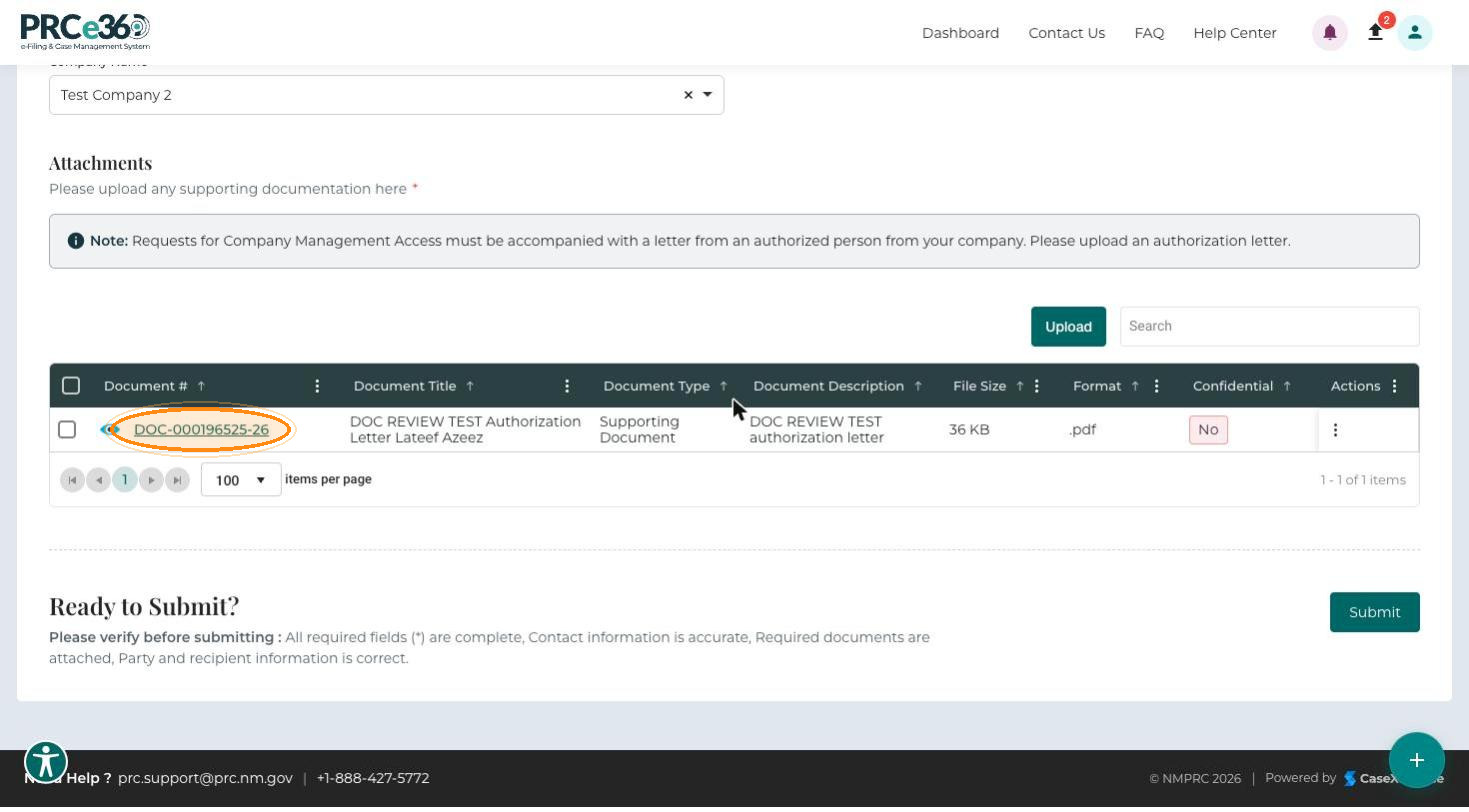
The document appears in the Attachments grid.
| Column | Description |
|---|---|
| Document # | Unique document number. Click it to open the document viewer. |
| Document Title | The name of the uploaded document. |
| Document Type | The classification, for example Supporting Document. |
| Document Description | A brief description of the contents. |
| File Size / Format | The file size and type, for example .pdf or .docx. |
| Confidential | Whether the document is confidential. |
| Actions | The ⋮ menu, with Link and Delete. When linking, choose the document record associated with the correct docket ID. |
Submit the Request
-
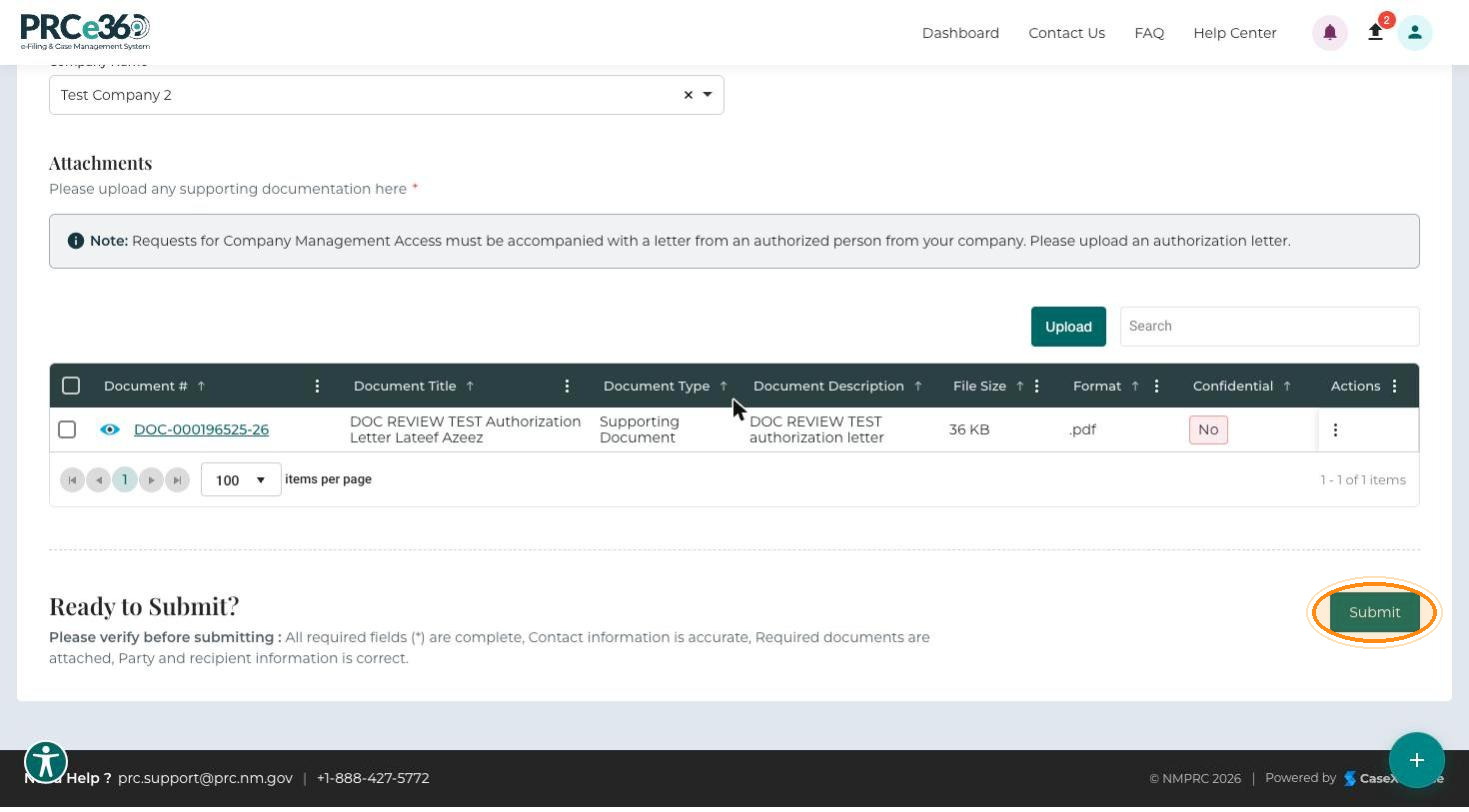
Review the information you entered.
-
Click Submit.
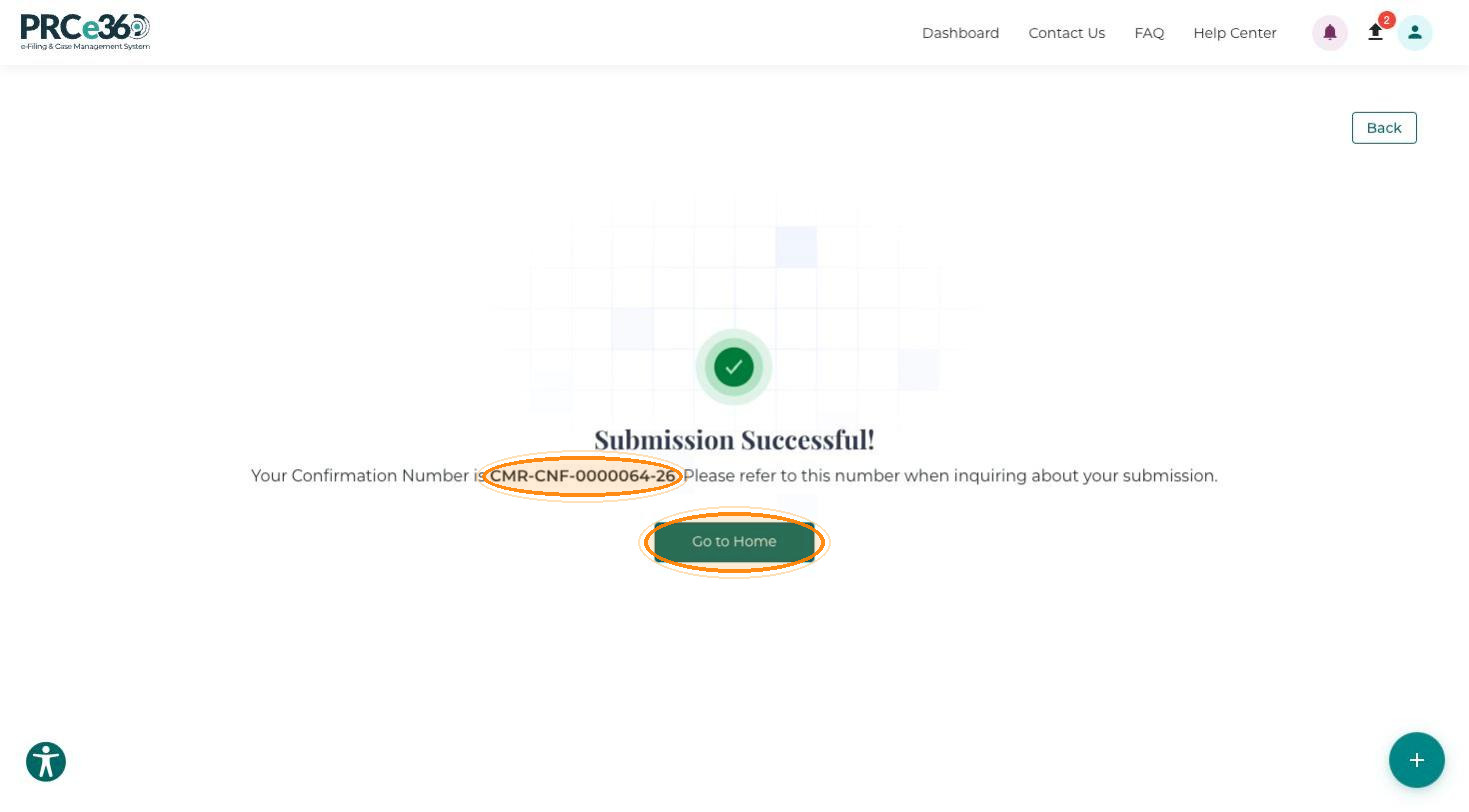
Submission Successful! appears with your Confirmation Number, for example CMR-CNF-0000064-26. Refer to this number when you ask about your submission. Click Go to Home to return to the dashboard.
Approval
PRC staff review the request. The company is added to My Companies only after the request is approved.
| Result | What happens |
|---|---|
| Approved | You receive an automated approval email. The company appears in My Companies on your dashboard. Click the company name or the confirmation number to open the Company 360 page. |
| Rejected | You receive an automated email with the reason. The company record appears with the status Inactive. |
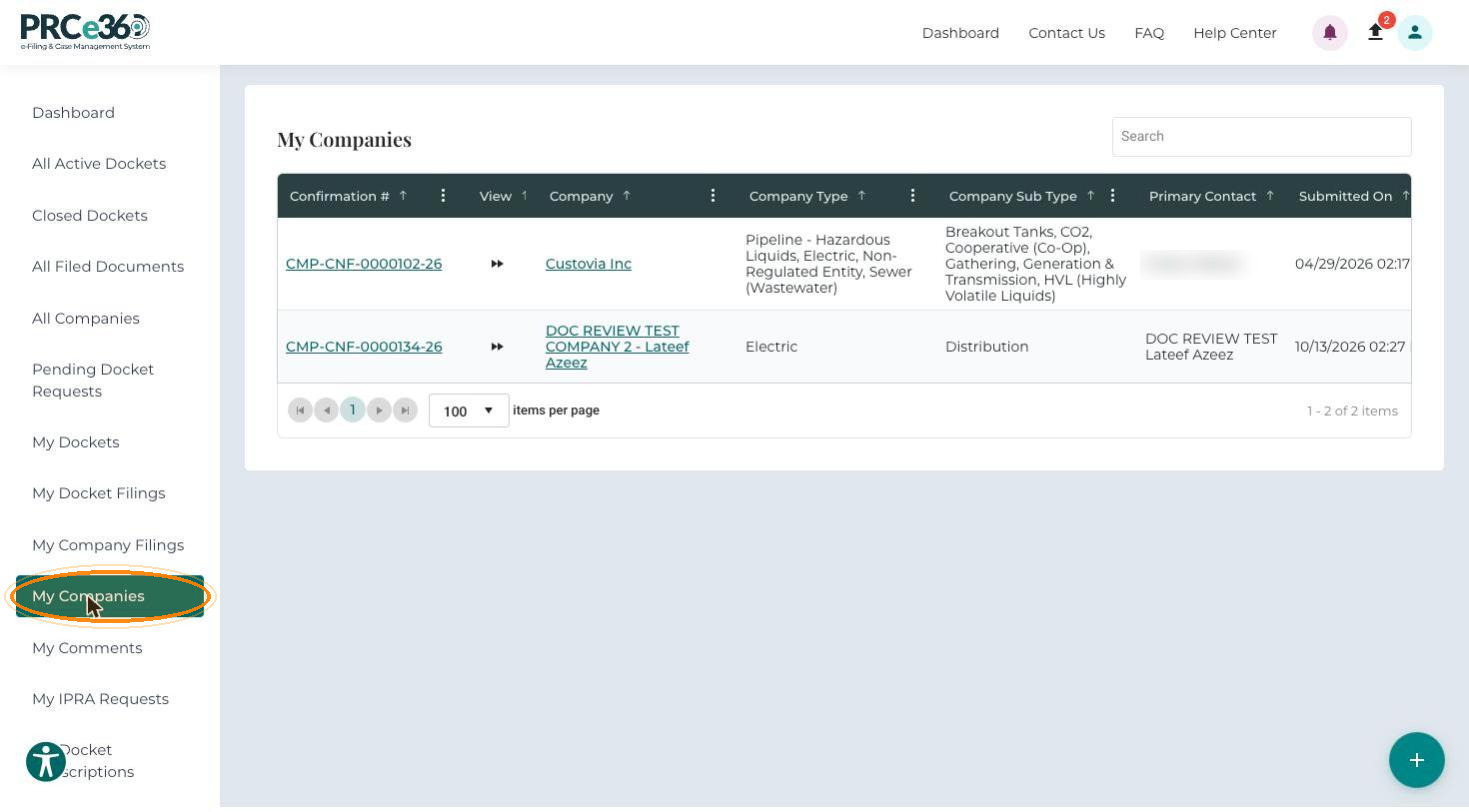
To see the companies you manage, click My Companies in the left-hand menu.