Register a New Company
Use Register a New Company to create a company profile in the portal, for example before you file a new docket for a company that is not yet in the system. PRC staff review and approve each registration.
Tier 2 users who are signed in to the portal.
Have these ready:
- The company's legal name, any former or trade names, email address and phone number.
- Your title or position in the company.
- The company's physical and mailing addresses.
- Details for the primary company contact and any additional contacts.
- The company's industry type and subtypes.
- Open the form
- Company Information
- Filer Information
- Addresses
- Primary Contact
- Additional Contacts
- Industry
- Submit
- Approval
Open the Form
-
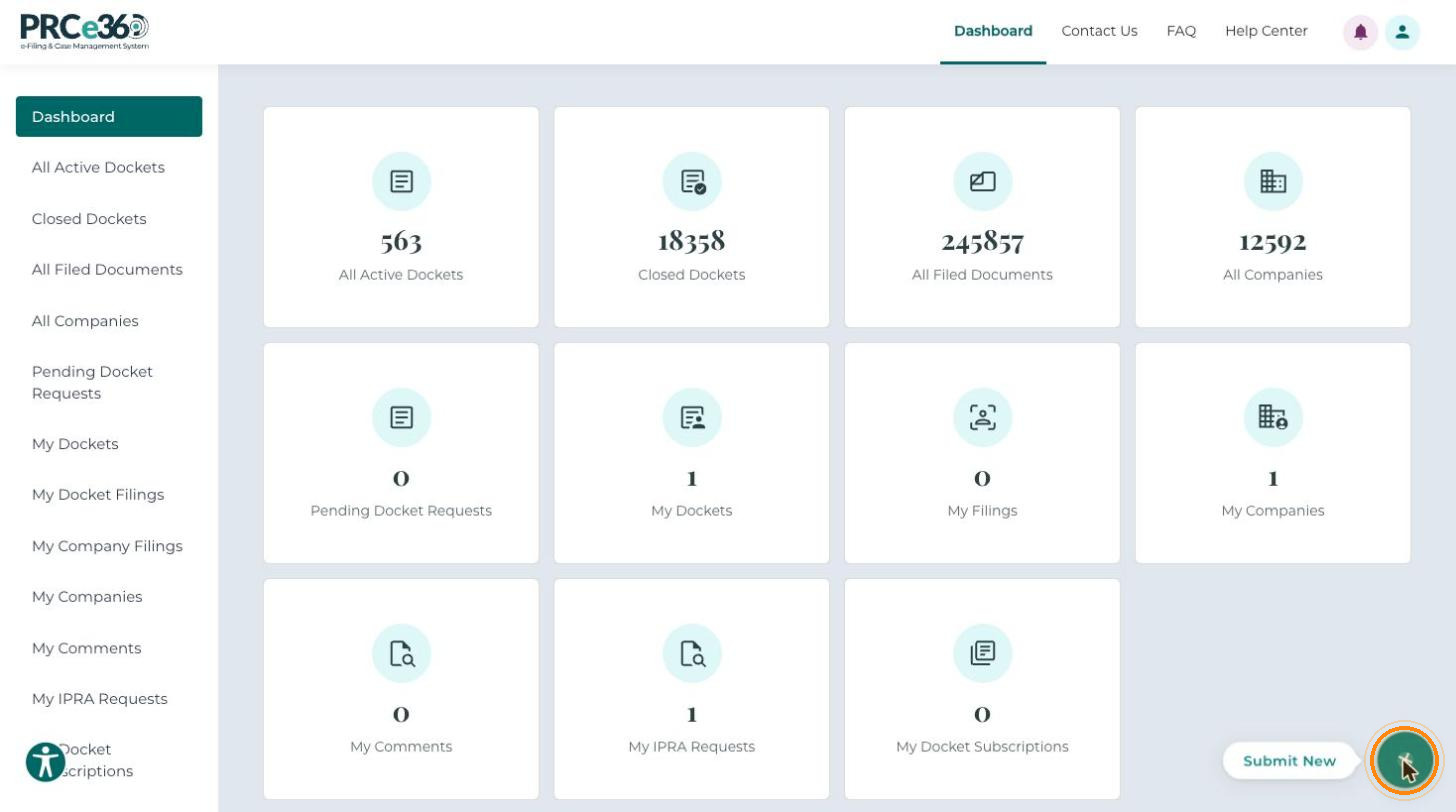
On your Dashboard, click Submit New at the bottom right of the screen.
-
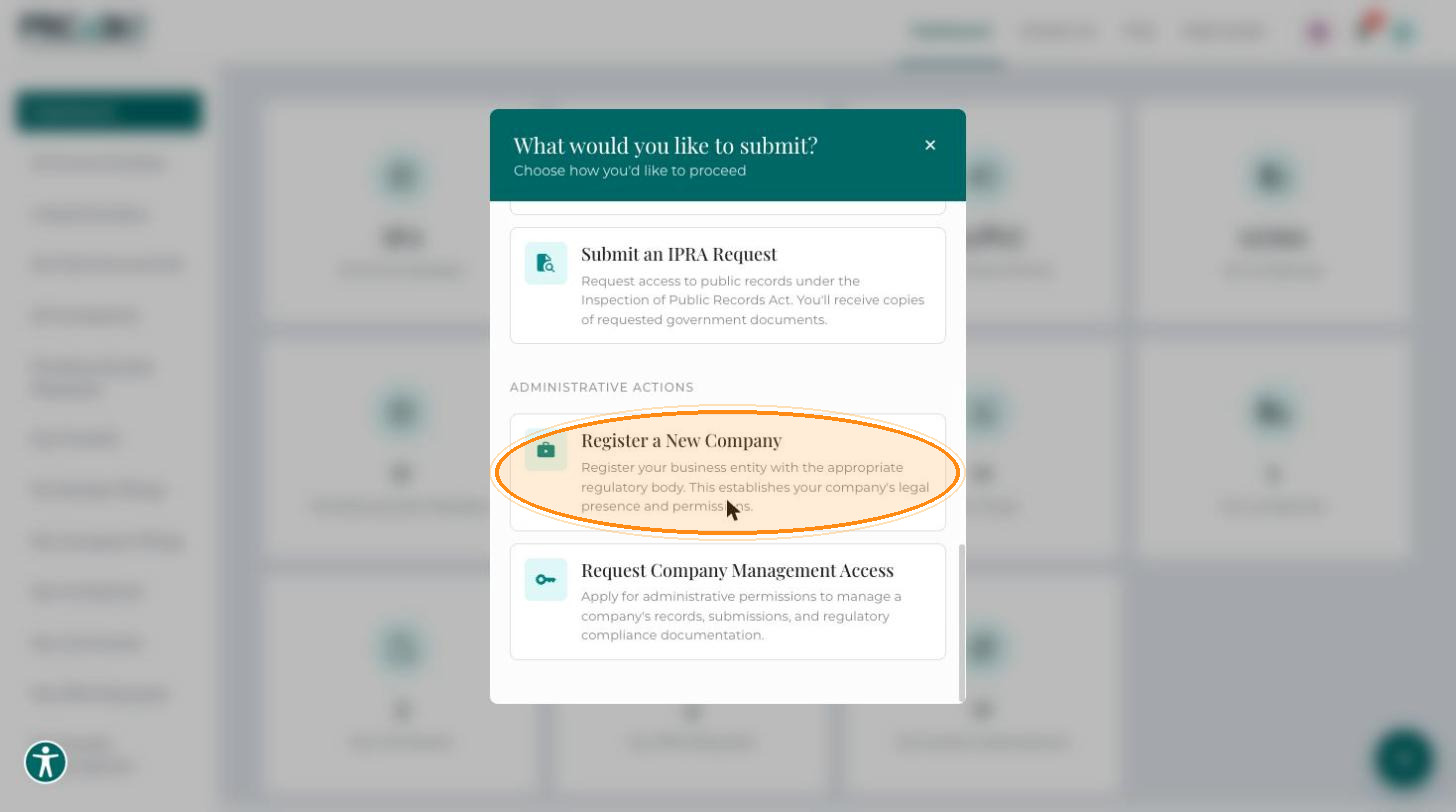
In the What would you like to submit? pop-up, under Administrative Actions, select Register a New Company.
The Register New Company form opens with all the sections you need to complete. All fields marked with * are required.
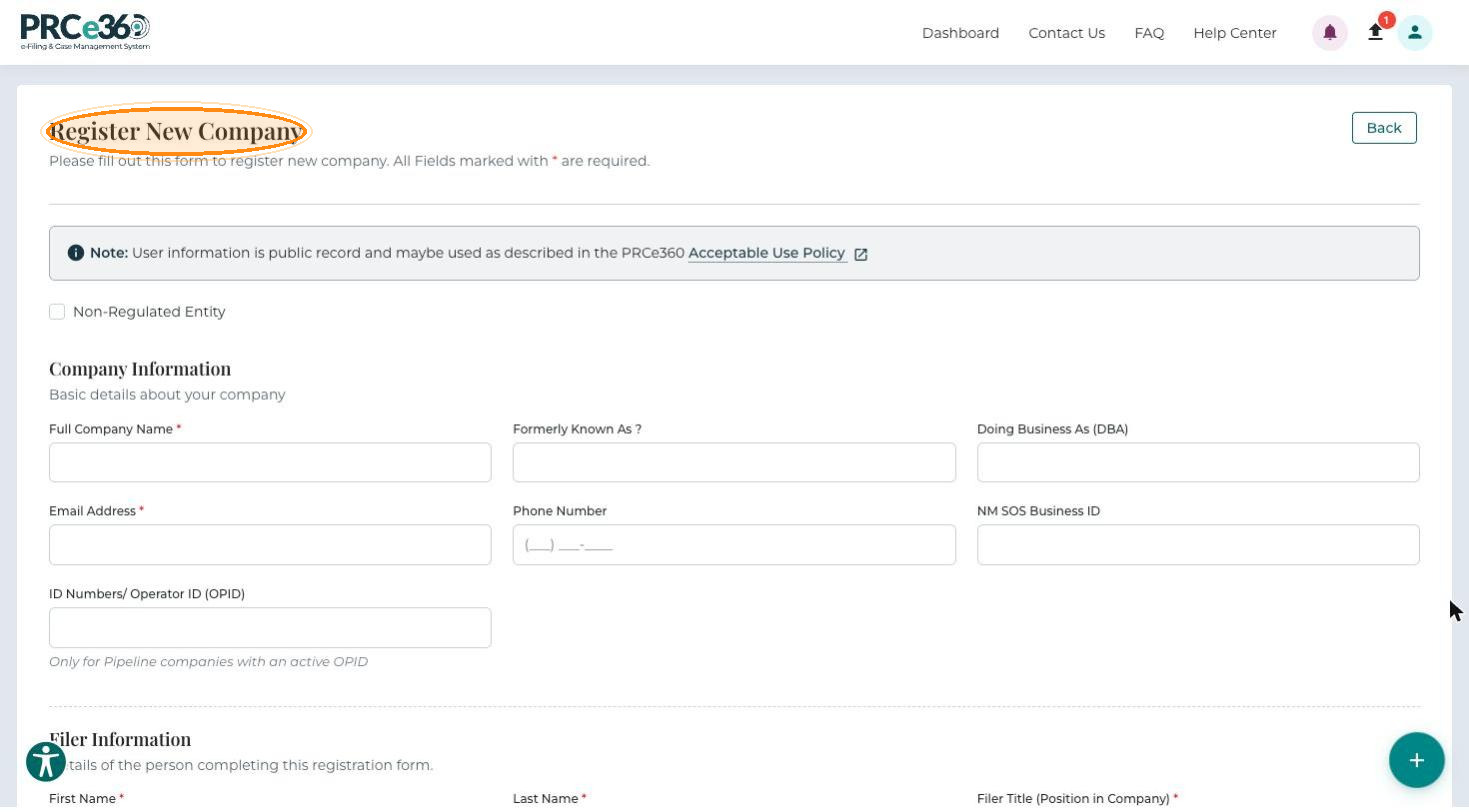
User information is public record and may be used as described in the PRCe360 Acceptable Use Policy, which is linked at the top of the form.
If the company is not regulated by the PRC, select the Non-Regulated Entity check box at the top of the form.
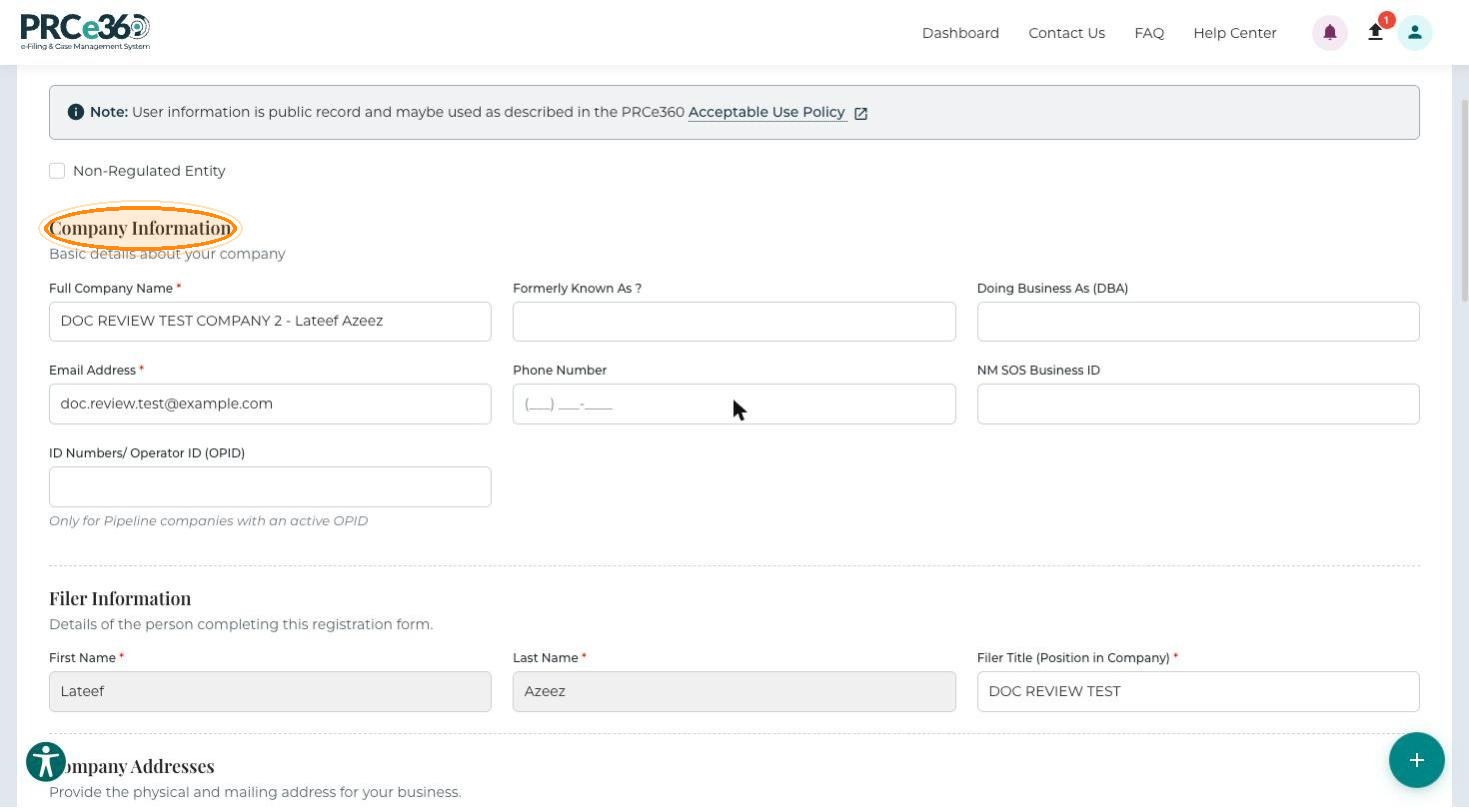
Company Information
Enter the company's basic identification and contact details.
| Field | Description |
|---|---|
| Full Company Name* | The official legal name of the company. |
| Formerly Known As | A previous name, if any. |
| Doing Business As (DBA) | A trade or alternate business name. |
| Email Address* | The company's primary business email. |
| Phone Number | The company's contact number. |
| NM SOS Business ID | The company's New Mexico Secretary of State business ID. |
| ID Numbers / Operator ID (OPID) | Only for pipeline companies with an active OPID. |
Filer Information
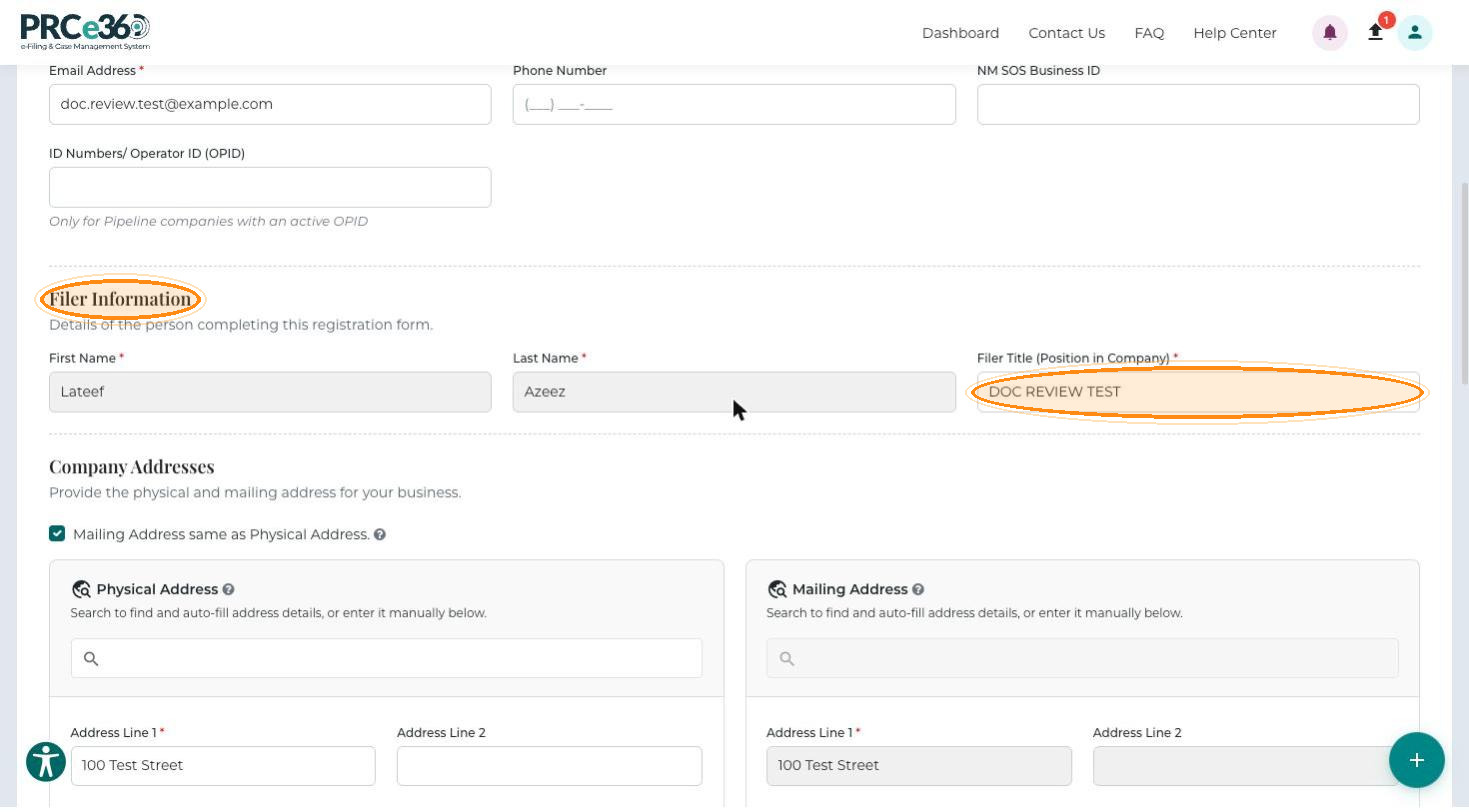
Identify the person completing the registration. First Name* and Last Name* are filled in from your profile and cannot be changed. Enter your Filer Title (Position in Company)*.
Company Addresses
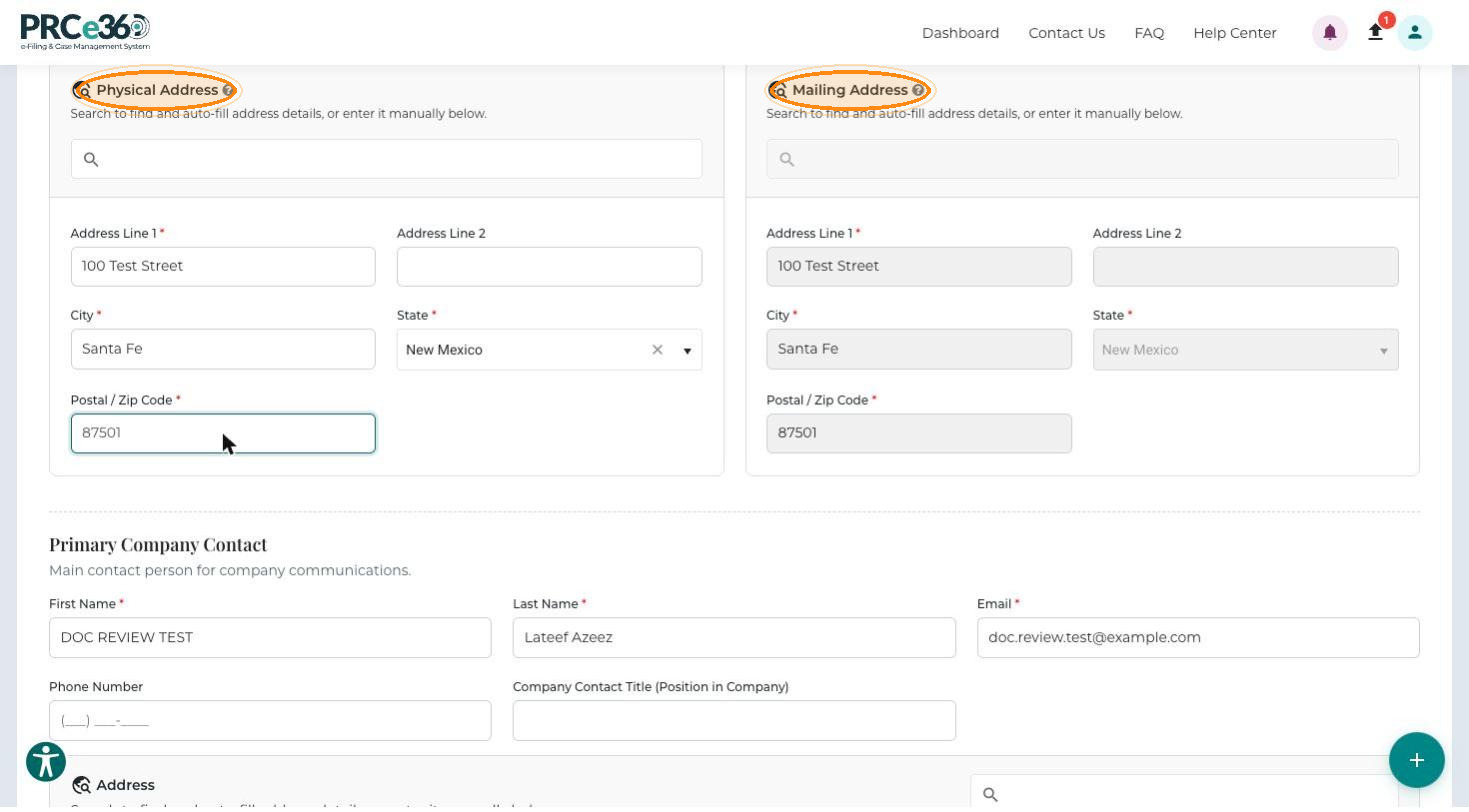
Enter the company's Physical Address. Mailing Address same as Physical Address is selected by default, so the mailing address is copied from the physical address. If the company receives mail at a different address, clear the check box and enter the Mailing Address too. The mailing address is used for correspondence.
For each address, type in the Address search box and choose a suggestion to fill in the fields, or enter them yourself:
- Address Line 1*
- Address Line 2 (optional)
- City*
- State*, chosen from the list
- Postal / Zip Code*
Primary Company Contact
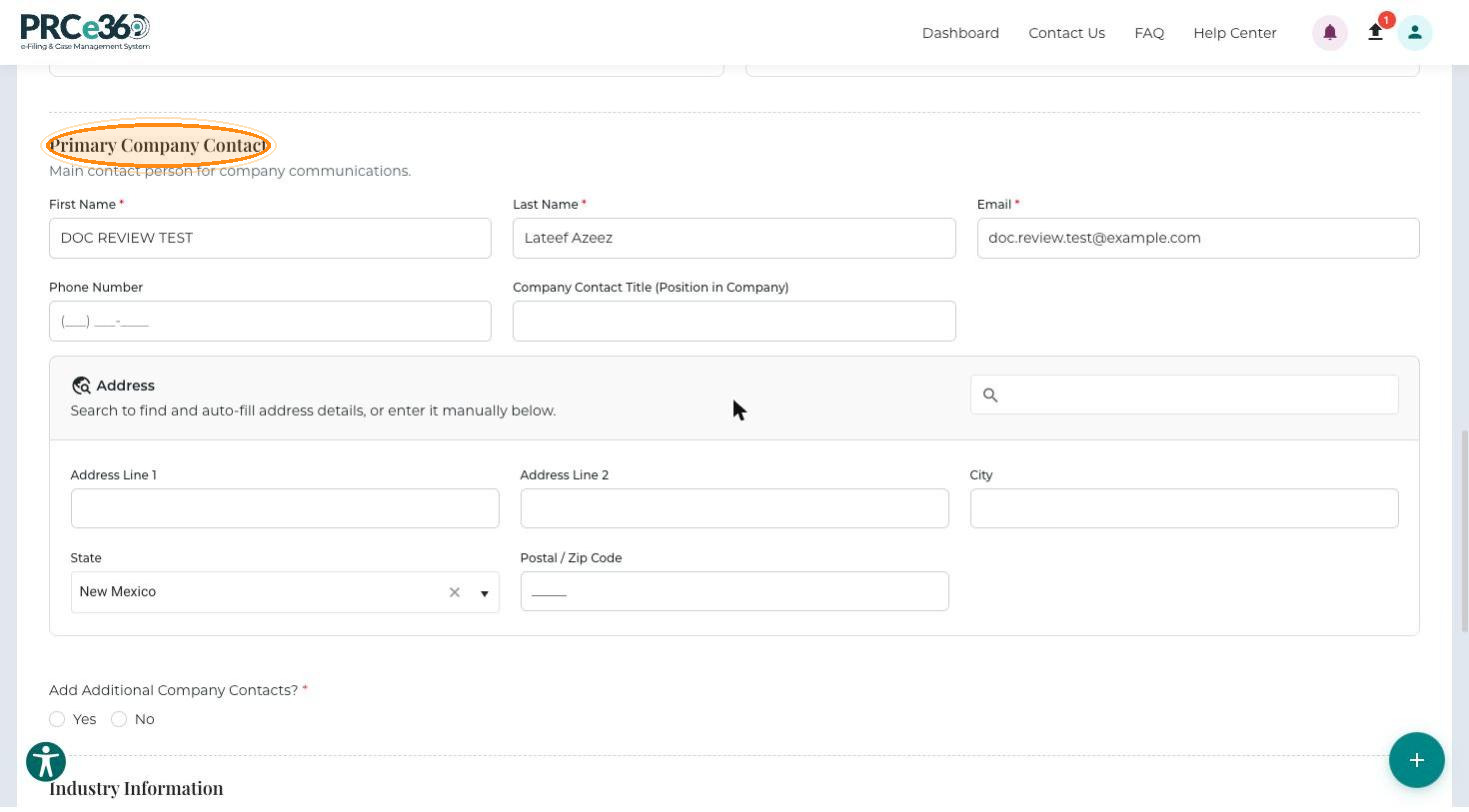
Enter the main contact person for company communications.
-
Enter First Name*, Last Name* and Email*.
-
Optionally enter the Phone Number and the Company Contact Title (Position in Company).
-
Optionally enter the contact's address: Address Line 1, Address Line 2, City, State and Postal / Zip Code. You can use the Address search box to fill these in.
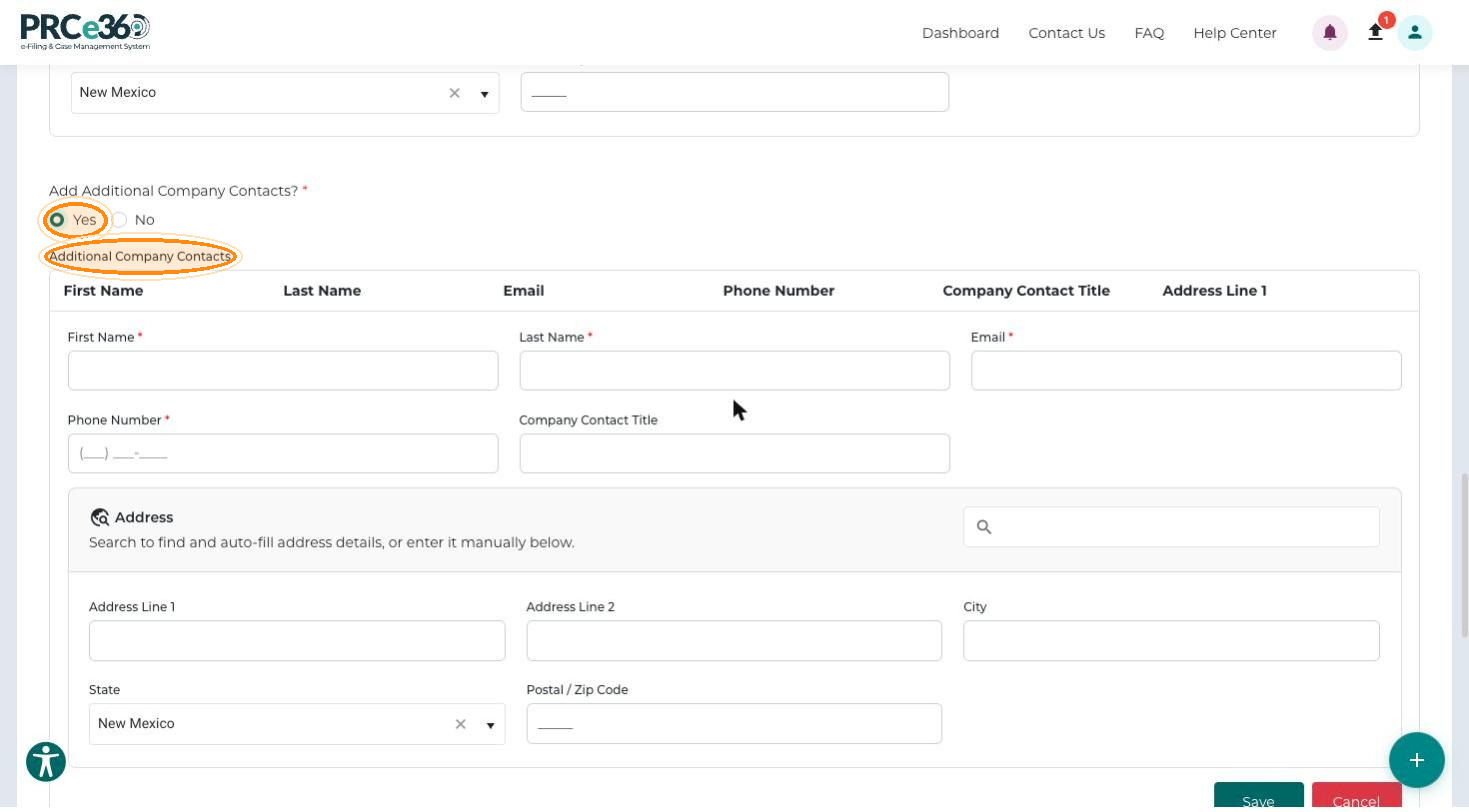
Additional Company Contacts
-
Answer Add Additional Company Contacts?*
- No: continue to the next section.
- Yes: the Additional Company Contacts grid opens with an entry form. For each contact, enter First Name*, Last Name*, Email*, Phone Number*, and optionally the Company Contact Title and address.
-
Click Save to add the contact to the grid, or Cancel to discard it.
Industry Information
-
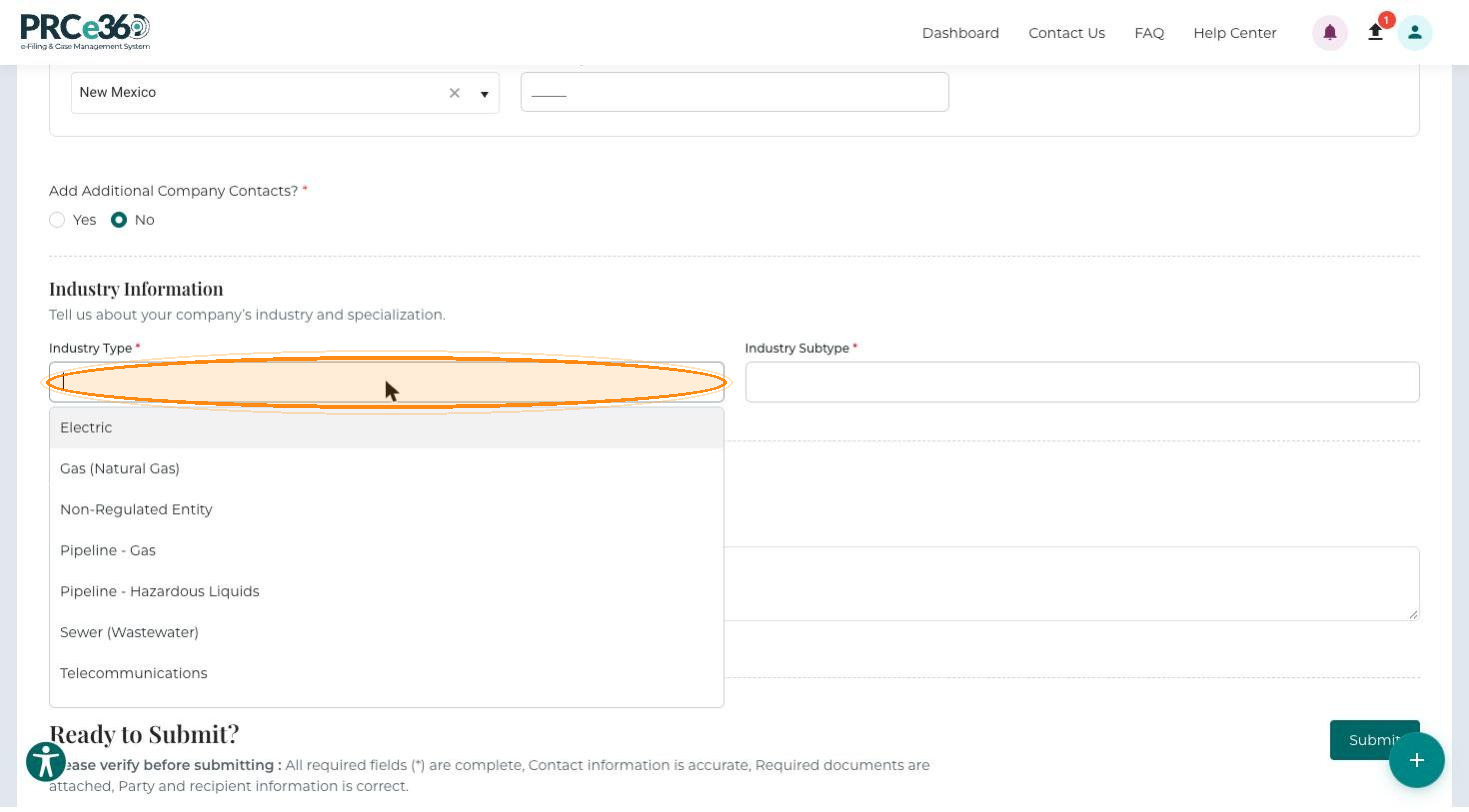
Choose the Industry Type*: Electric, Gas (Natural Gas), Non-Regulated Entity, Pipeline - Gas, Pipeline - Hazardous Liquids, Sewer (Wastewater) or Telecommunications. You can choose more than one.
-
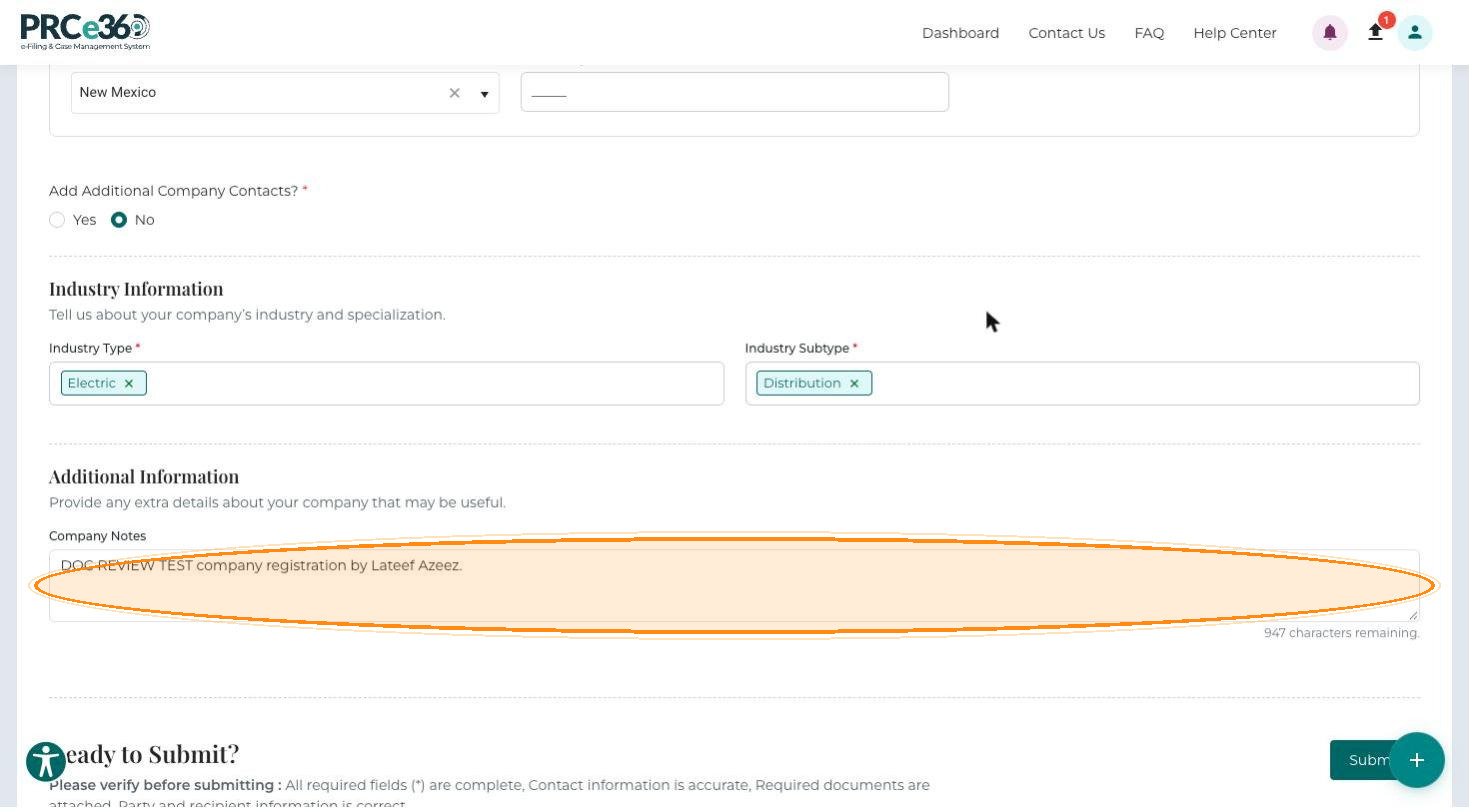
Choose the Industry Subtype*, the company's specialization. The options depend on the industry type; for Electric they are Cooperative (Co-Op), Distribution, Generation & Transmission, Investor-Owned Utility (IOU), Renewable Energy Provider (Solar/Wind) and Other. You can choose more than one subtype.
Additional Information
Optionally enter Company Notes with any extra details about the company, up to 1,000 characters. The number of characters remaining is shown below the box.
Submit the Registration
-
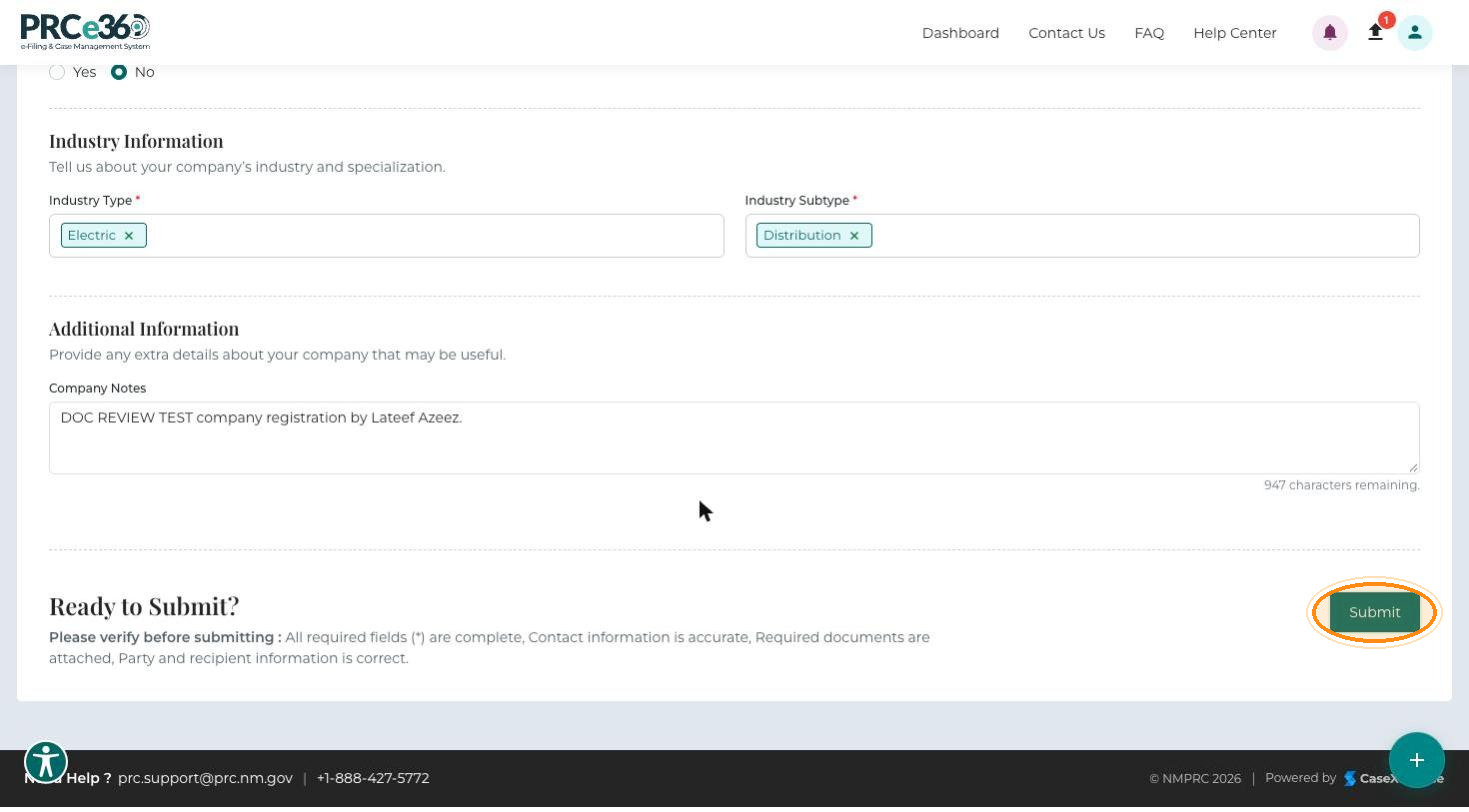
Review the details you entered.
-
Click Submit to send the registration request for review.
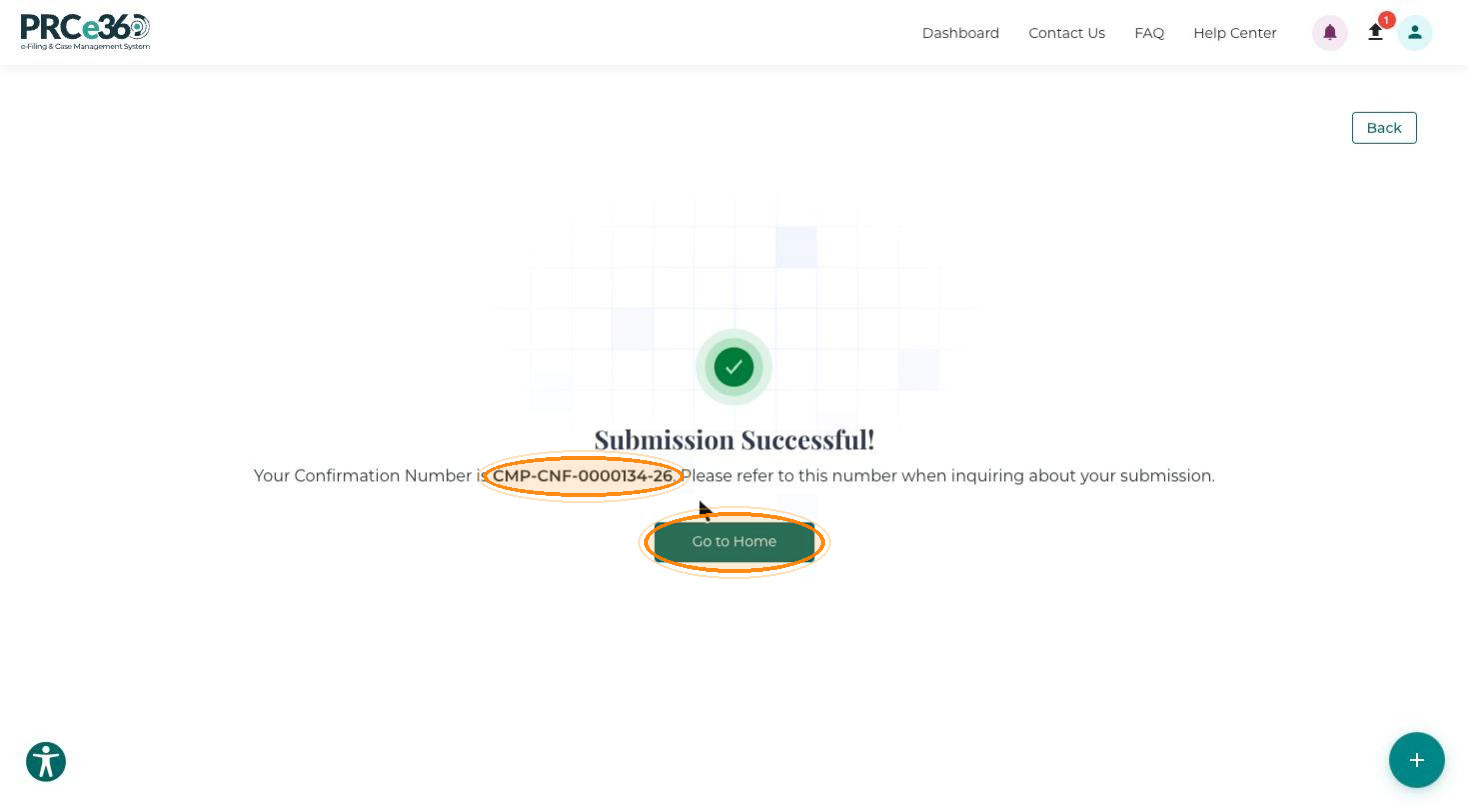
Submission Successful! appears with your Confirmation Number, for example CMP-CNF-0000134-26. Refer to this number when you ask about your submission. Click Go to Home to return to the dashboard.
Approval
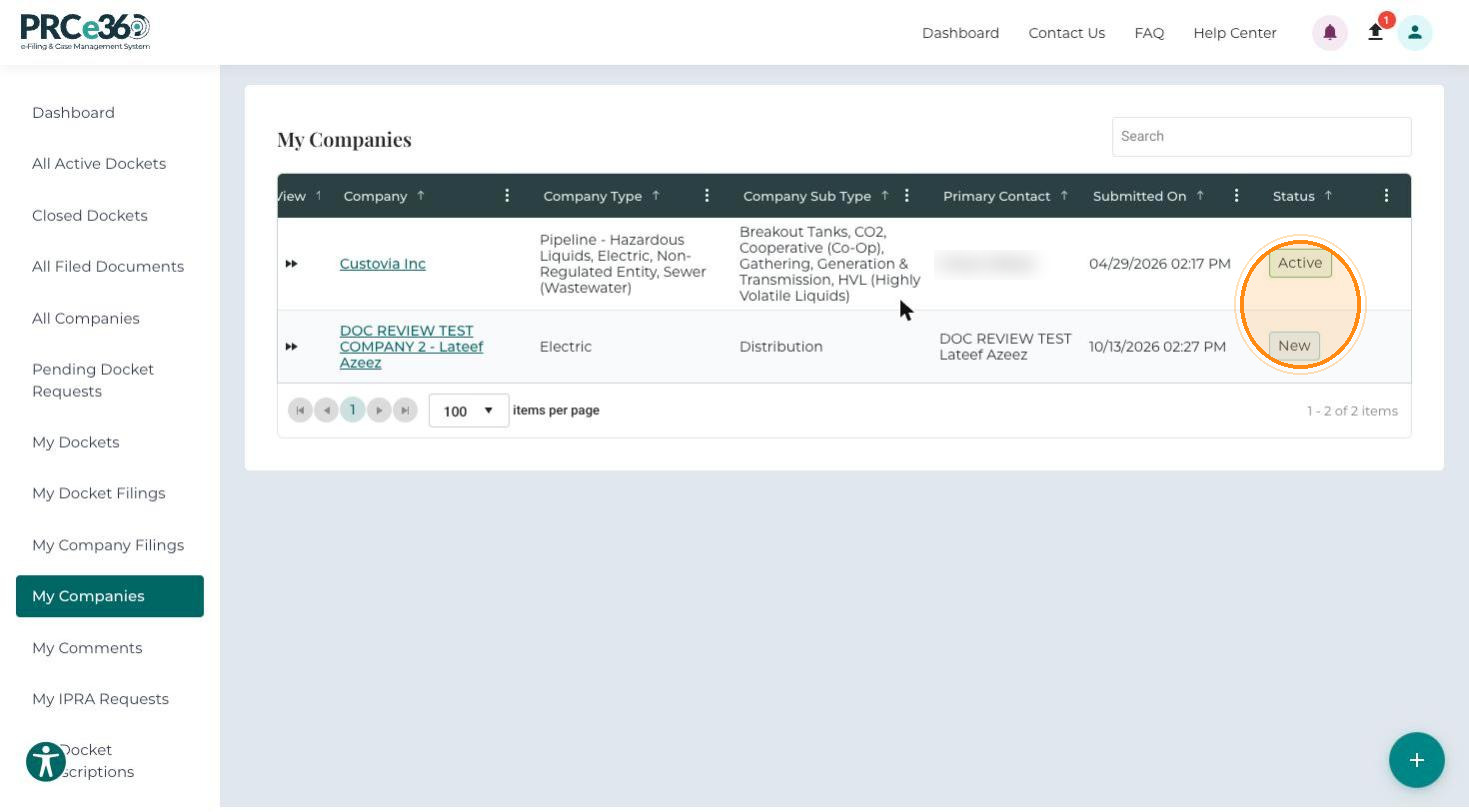
PRC staff review the registration request. Until it is reviewed, the company is listed in My Companies with the status New.
| Result | What happens |
|---|---|
| Approved | You receive an automated approval email. The company's status changes to Active. Click the company name or the confirmation number to open the Company 360 screen. |
| Rejected | You receive an automated email with the rejection reason. The company's status changes to Inactive. |
To check the status, click My Companies in the left-hand menu.
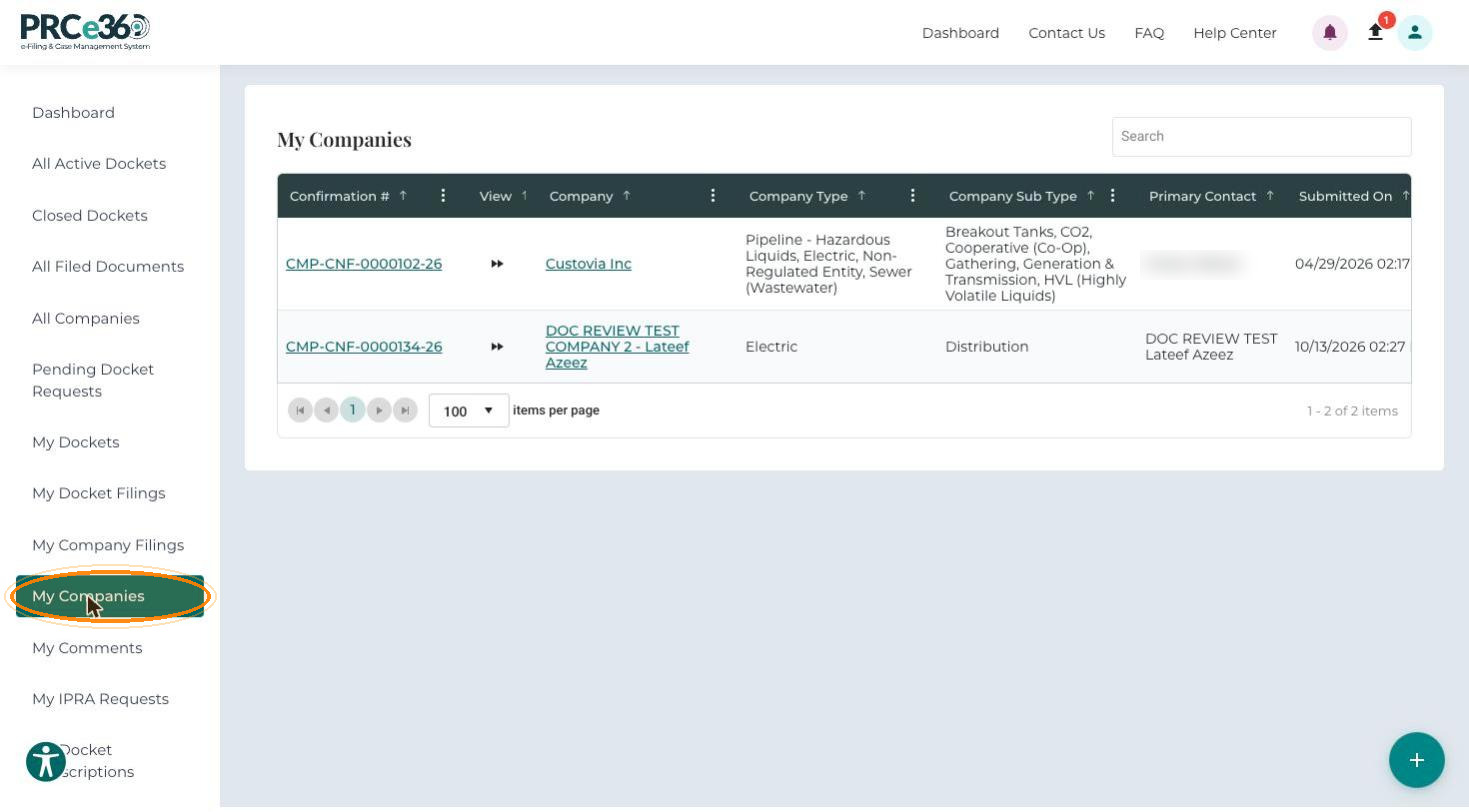
The My Companies grid shows each company you registered, with its confirmation number:
- Confirmation #
- View
- Company
- Company Type
- Company Sub Type
- Primary Contact
- Submitted On
- Status
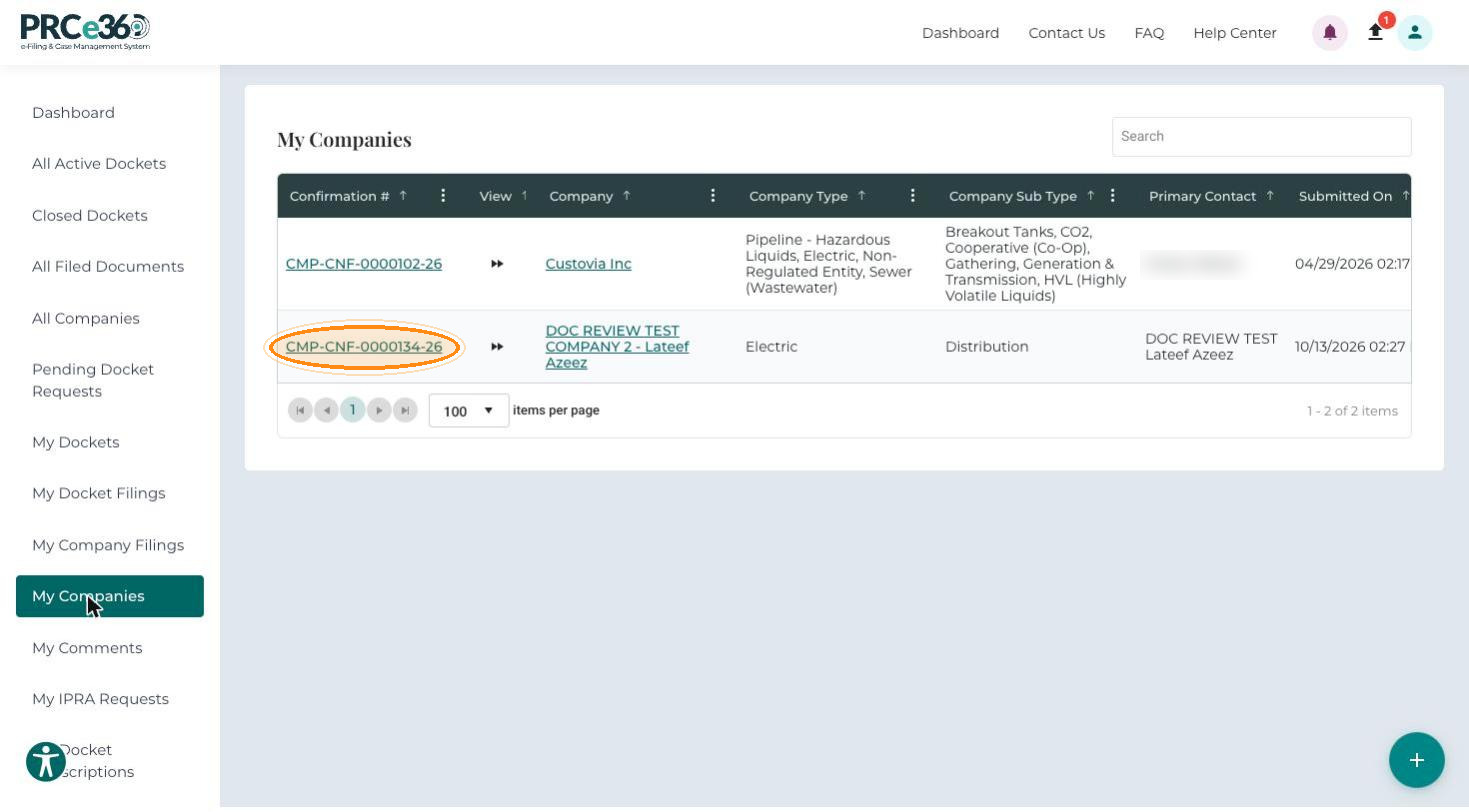
Scroll the grid to the right to see the Status column.