My Dockets
My Dockets lists only your own dockets: the dockets you created, filed into or submitted through the Public Portal. Use it to track each submission from its confirmation number to its official docket number.
| User type | What My Dockets shows |
|---|---|
| Tier 1 | The formal complaints and filings you submitted. |
| Tier 2 | All dockets you created or filed into. Tier 2 users can file new dockets, submit formal filings and file into existing dockets, and the list reflects all of that activity. |
To browse every public docket instead, use Viewing Dockets.
Open My Dockets
In the left menu, click My Dockets. Your dockets are listed with these columns:
| Column | Description |
|---|---|
| Confirmation # | The confirmation number given when you submitted the docket. The link opens your original submission. |
| View | Opens the record. |
| Docket # | The official docket number, assigned once PRC staff approve and process the docket. |
| Docket Type | The type of docket filed, for example Pipeline or Telecommunications. |
| Docket Category | The category within the docket type, for example Application (General). |
| Docket Caption | The short title of the docket. |
| Company | The company the docket or filing is for. |
| Filed By | The person who filed the docket. |
| Filed Date | Date and time the docket was submitted. |
| Status | The current docket status, for example Active, Closed or Pending Review. |
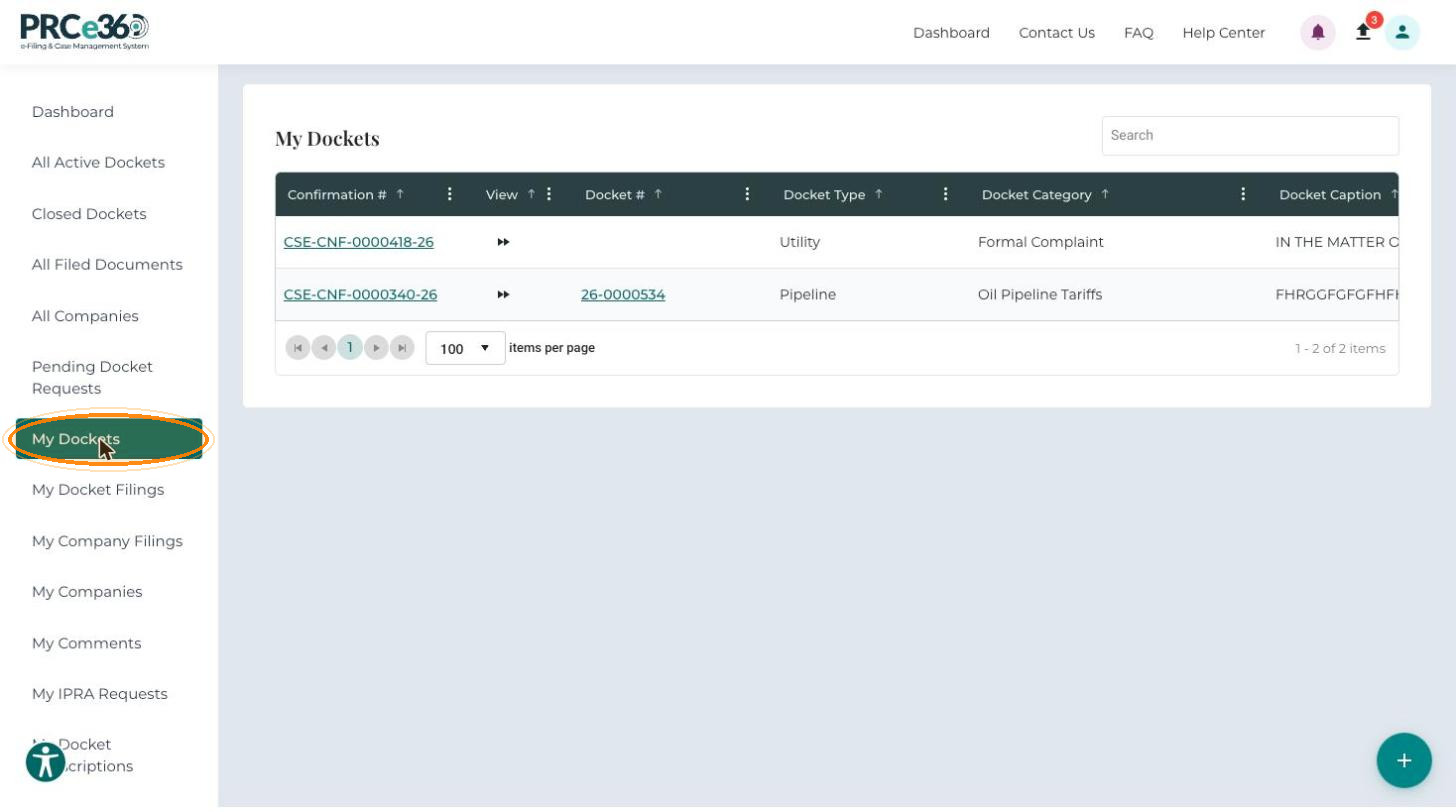
The Docket # appears in the list once PRC staff have approved and processed your docket. Until then, use the Confirmation # to find it.
To narrow the list, type a confirmation number, docket number or docket type in the Search box.
Open One of Your Dockets
-
Click the Confirmation # to see your original submission.
-
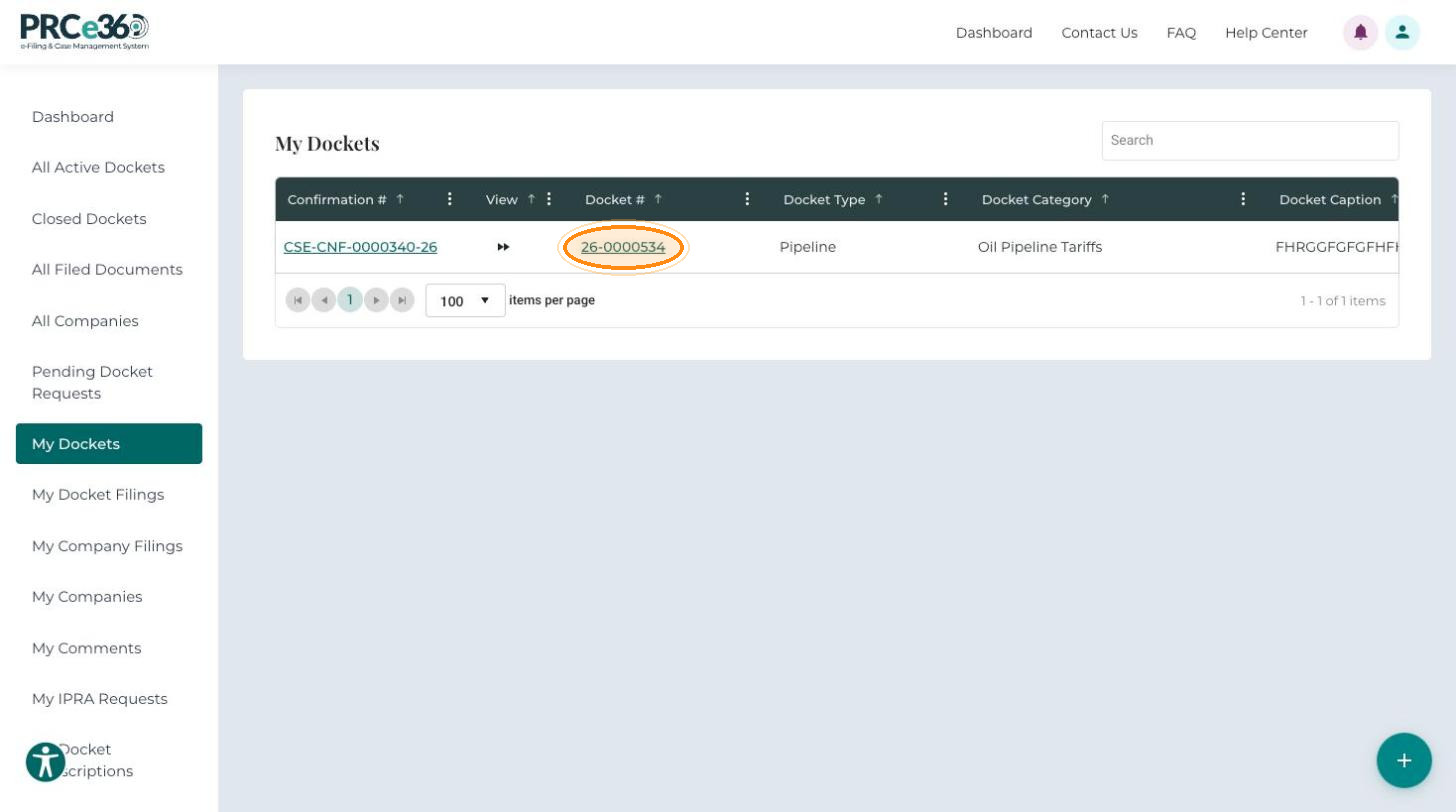
Click the Docket # to open the docket in Docket 360, with its filings, history and related documents.
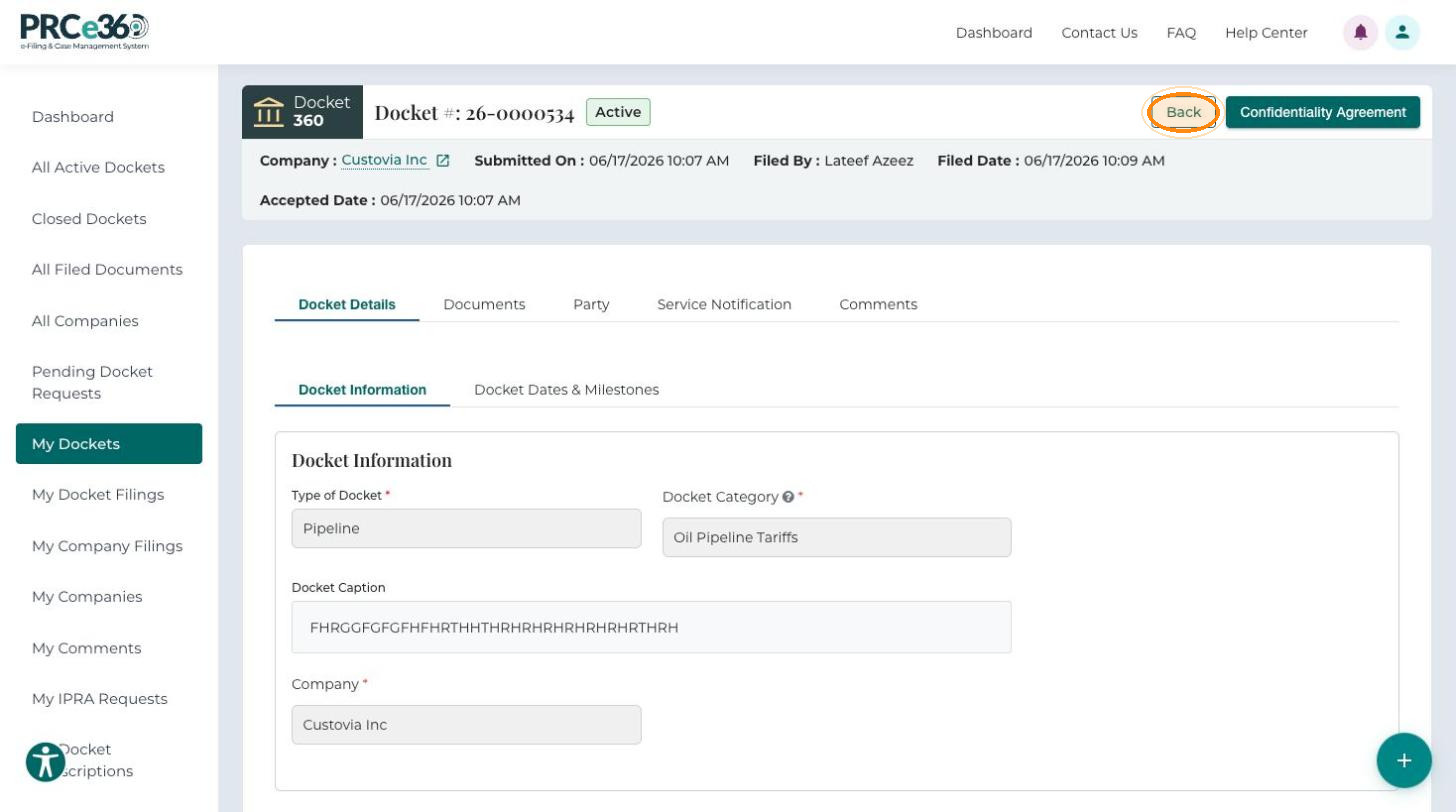
Docket 360 gives a complete summary of your docket: the docket information, parties, filings and notification options. The header shows the Docket #, status, Company, Submitted On, Filed By, Filed Date and Accepted Date. Click Back to return to My Dockets.
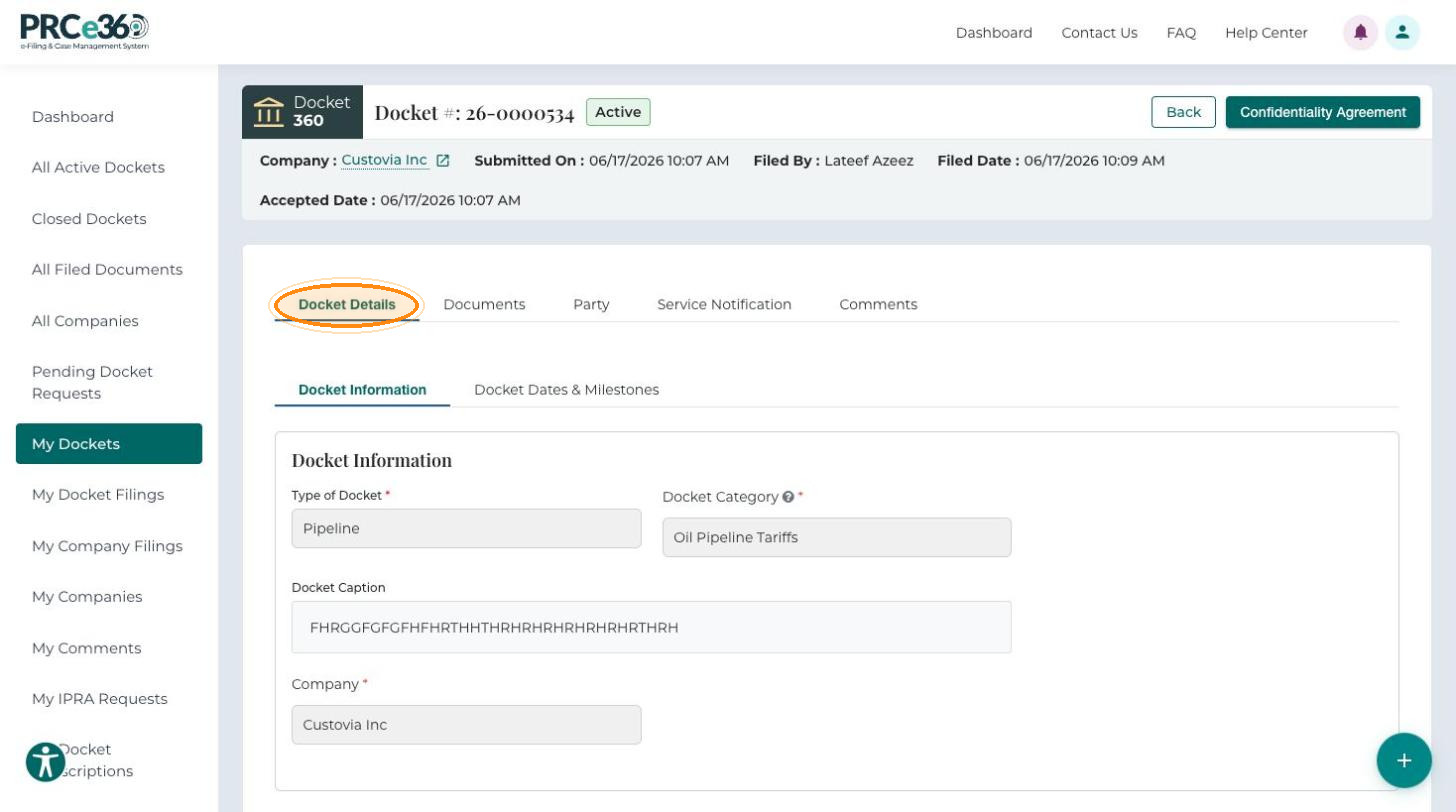
Docket 360 works the same way for your dockets as for any other docket. For each tab, see Viewing Dockets:
| Tab | What you can do |
|---|---|
| Docket Details | Review the form submitted when the docket was created, and its dates and milestones. |
| Documents | Open filed documents and download one or more of them. |
| Party | Review the parties and add a new party. |
| Service Notification | Review who receives notifications and add a recipient. |
| Comments | Review the comments submitted to the docket. |