Attach Comment Documents
Use the Attachments section of the comment form to add files that support your comment. Attachments are optional, but they can give context and evidence for your comment.
Complete the comment details first. See Complete the Comment Form.
Upload a Document
-
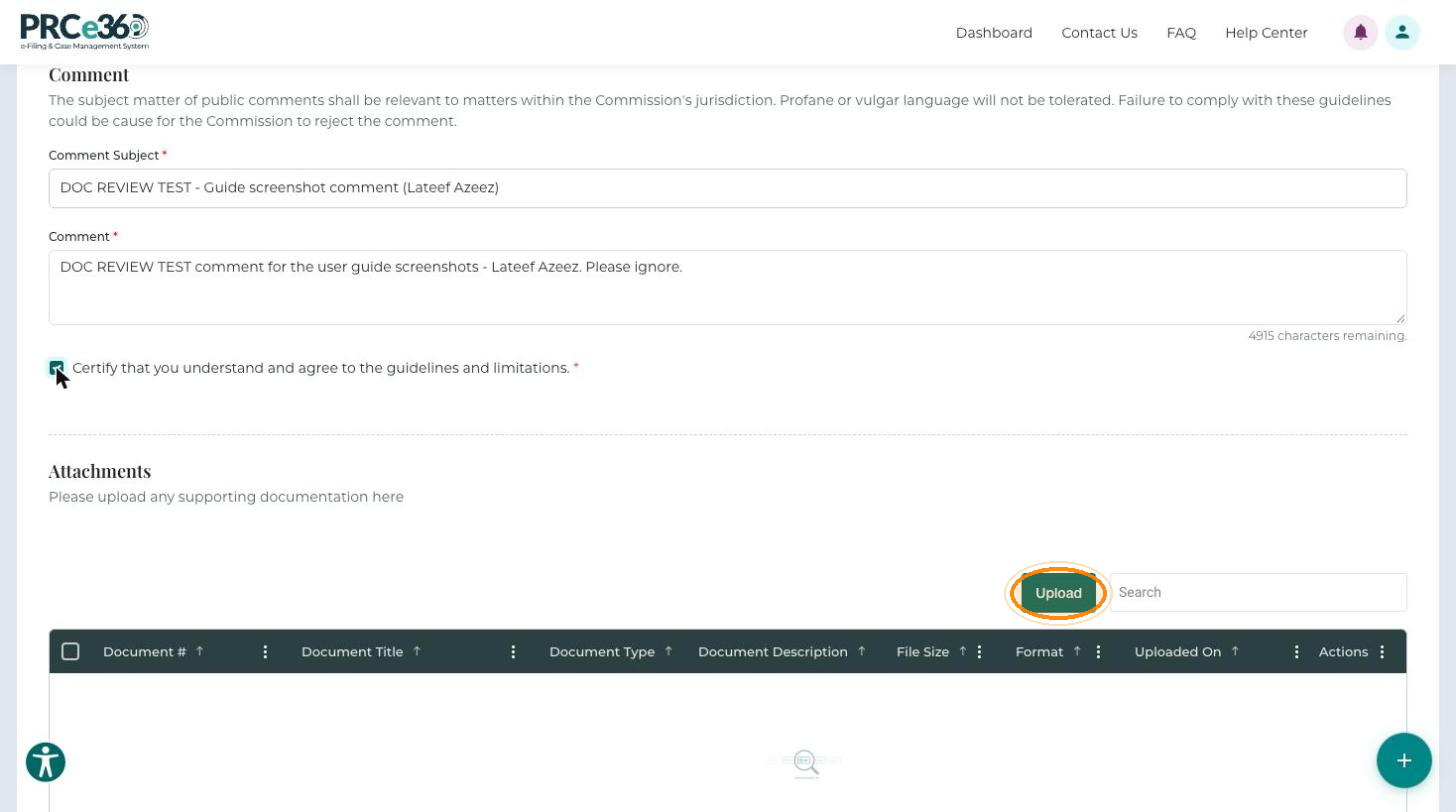
In the Attachments section, click Upload.
-
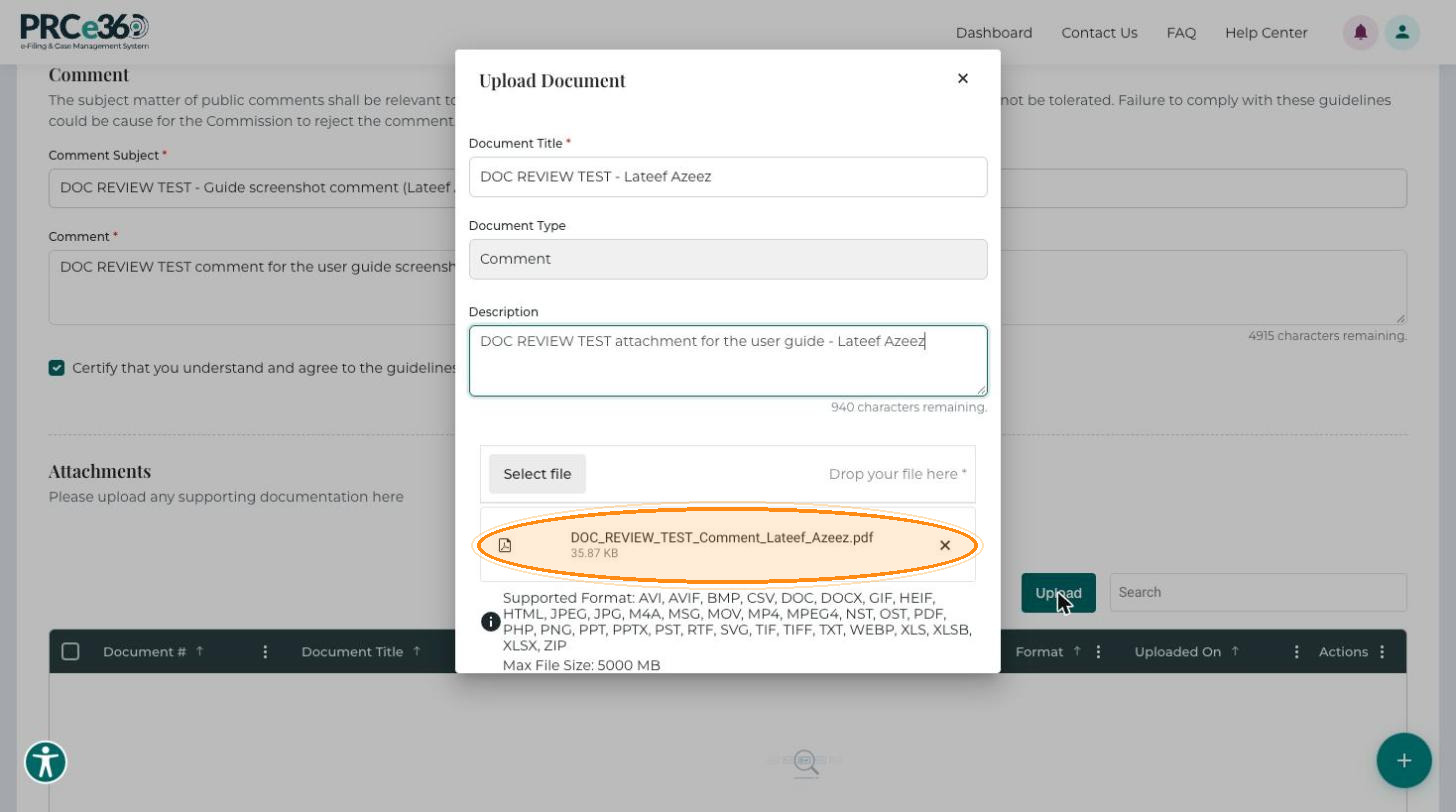
In the Upload Document dialog, enter the Document Title (required). The Document Type is set to Comment and cannot be changed.
-
Optionally, enter a Description.
-
Click Select file to browse for the file, or drag and drop it onto the dialog (required). The dialog lists the supported formats, and the maximum file size is 5000 MB.
-
Click Save to add the document to the attachments grid, or Cancel to close the dialog without saving. Messages at the top right confirm that the file uploaded and that its scan completed.
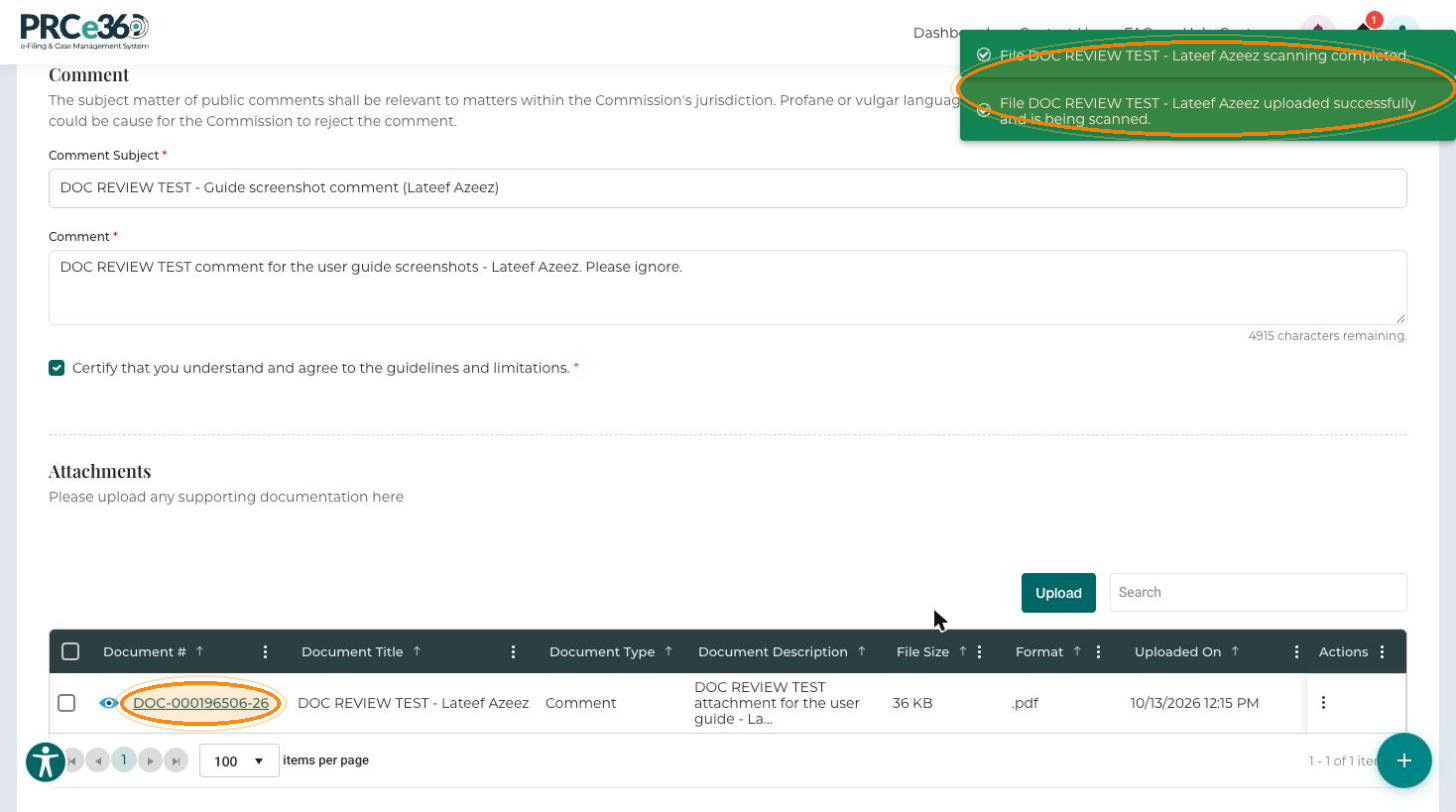
To remove an uploaded document, open the row's Actions menu (⋮).
Attachments Grid
| Column | Description |
|---|---|
| Document # | Unique number generated for each uploaded document. |
| Document Title | The title you entered. |
| Document Type | The document classification (Comment). |
| Document Description | The description you entered. |
| File Size | The size of the file. |
| Format | The file type, for example .pdf. |
| Uploaded On | Date and time the document was uploaded. |
| Actions | Menu (⋮) for removing the document. |